This can be done by creating a Communication Template that will be used for Calendar Event Confirmation.
To enable this feature, users must create and activate a Communication Template in the Communication Templates area.
Important: When a Communication Template is designated as the Calendar Event Confirmation message, all applicants who receive an event confirmation will receive this message. If no template is selected, a default system message will be sent.
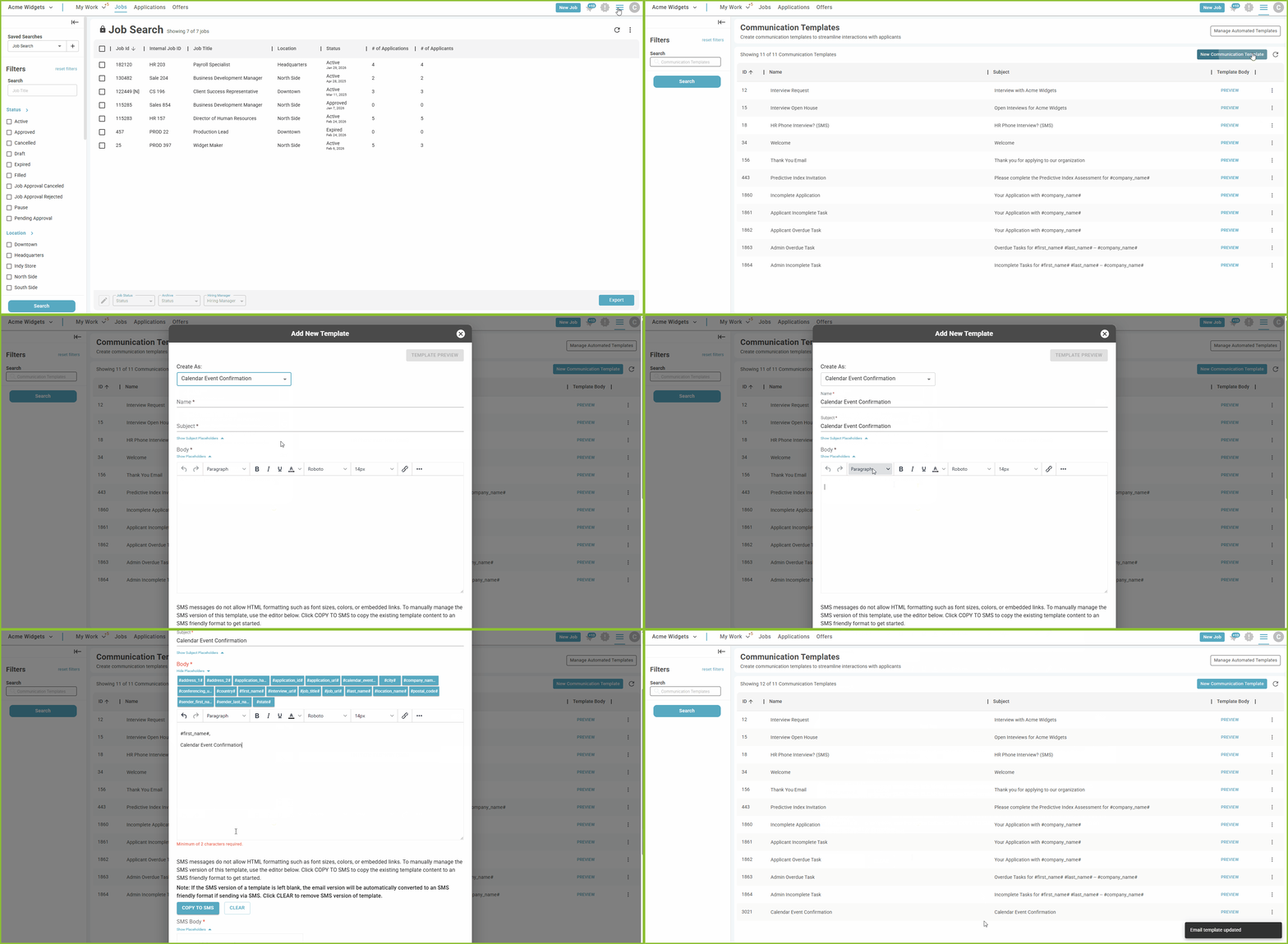
Create a Calendar Event Confirmation Communication Template
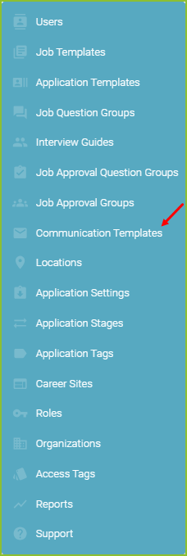
- Navigate to the Settings area.

- Click Communication Templates.
- Select New Communication Template.

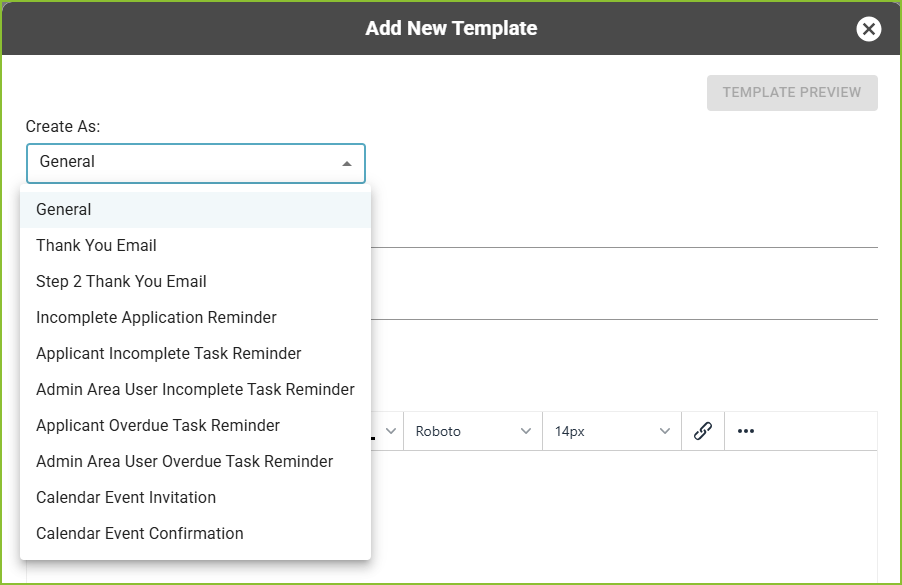
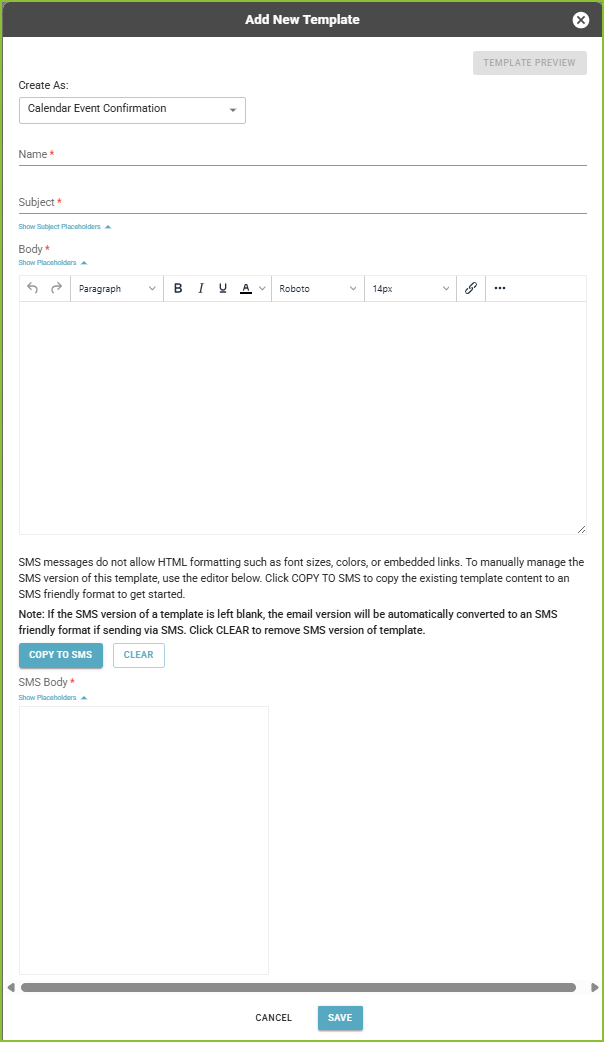
- Select Calendar Event Confirmation in the Create As menu.
- Complete the form by entering:
- Communication Template Name (for internal use)
- Email Subject
- Message Body
- Use the available Placeholders to personalize the email using applicant data. Click a placeholder to insert it into the subject line or message body.
- Use the available text formatting tools as needed.
- Click SAVE.
- Once saved, a confirmation message will appear indicating that the Communication Template has been successfully created.

Edit or Delete a Communication Template
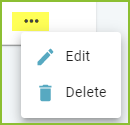
- To edit the template, click the More Options button and select Edit.
- To delete the template, click the More Options button and select Delete.