
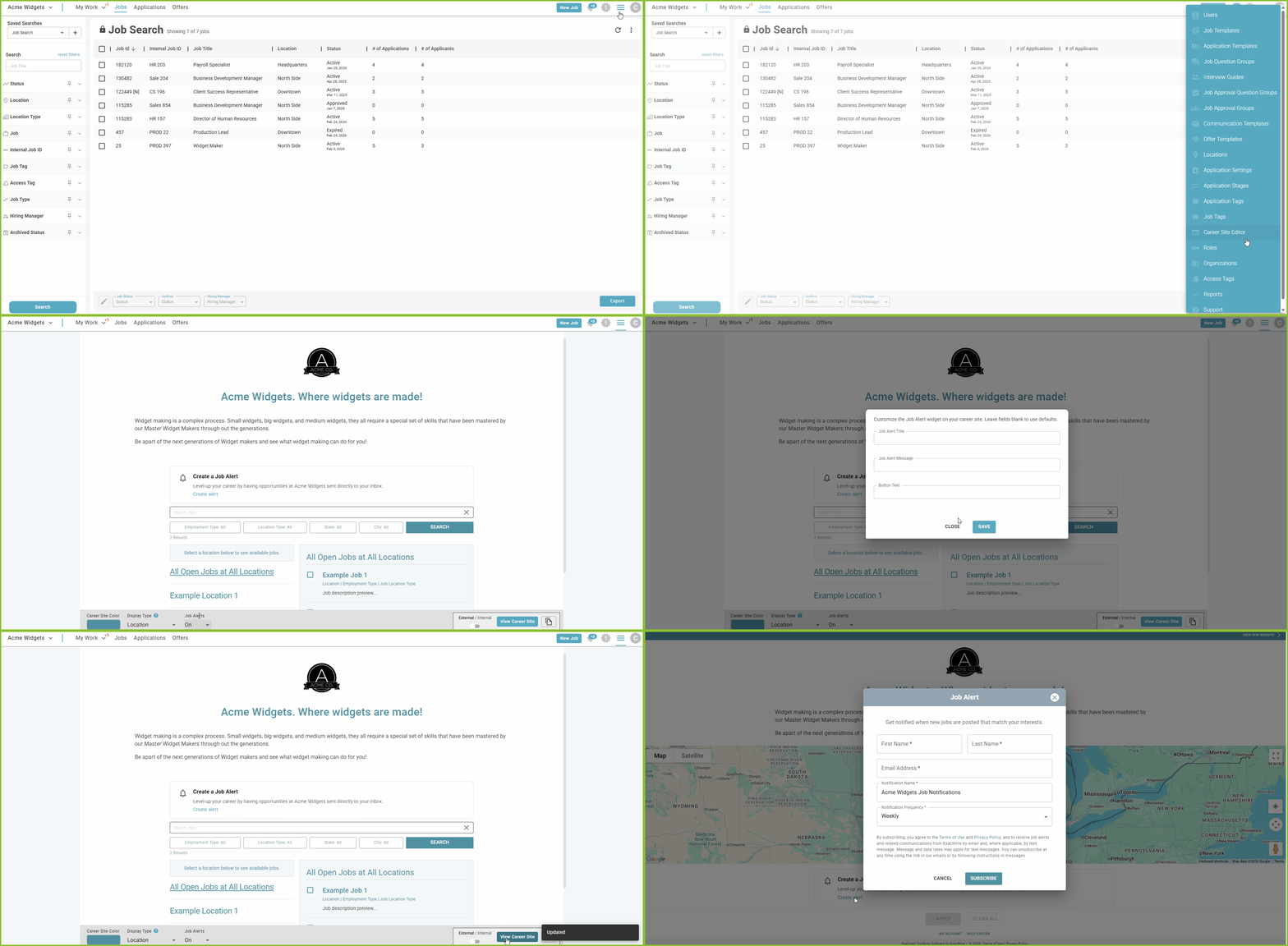
Activate Job Alerts Widget on the Career Site
- Begin the Settings Menu.
- Open Career Site Editor.
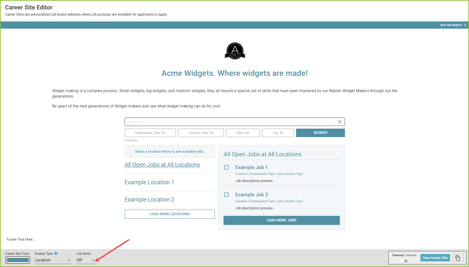
- Turn Job Alerts ON.
Please note: Job Alerts are off by default and must be enabled for the Career Site.
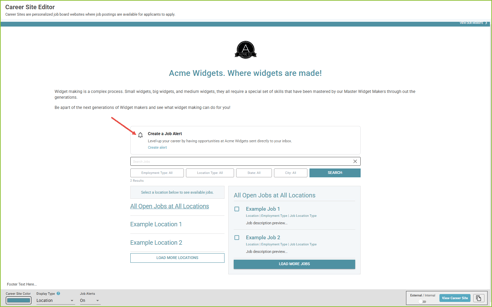
Customize the Job Alerts Widget
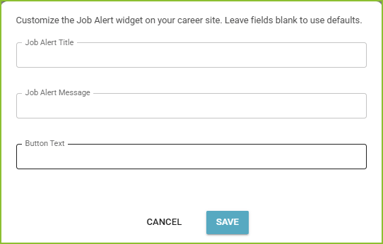
Once enabled, click into the Job Alert Widget in the Career Site preview and edit the messaging that appears on the career site. Leave fields blank to use the default messaging.
- Title (default: Create a Job Alert)
- Message (default: Level-up your career by having opportunities at [Organization Name] sent directly to your inbox.)
- Button Text (default: Create Alert)
Applicant Experience
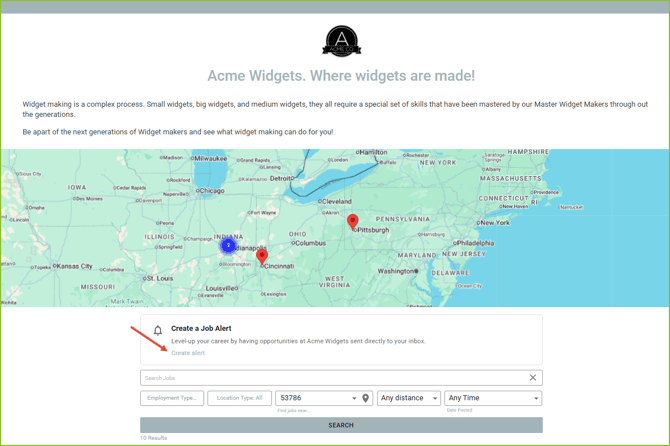
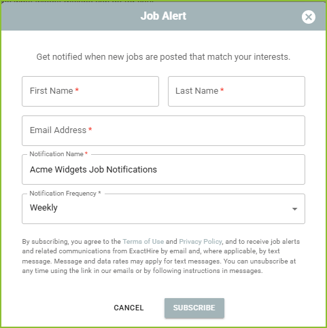
Applicants will enter the following to set up their Job Alerts:
- First Name
- Last Name
- Email Address
- Select frequency of the alerts:
- Daily (sent every day)
- Weekly (sent on Mondays)
- Monthly (sent on the 1st)
- The applicant will then receive a confirmation email with a link to verify and activate their subscription.
Applicants can manage the Job Alerts preferences at any time in the applicant account: update alert name, update the frequency, unsubscribe, and/or re-subscribe.
Please note: applicants may unsubscribe directly from any email (no login required).