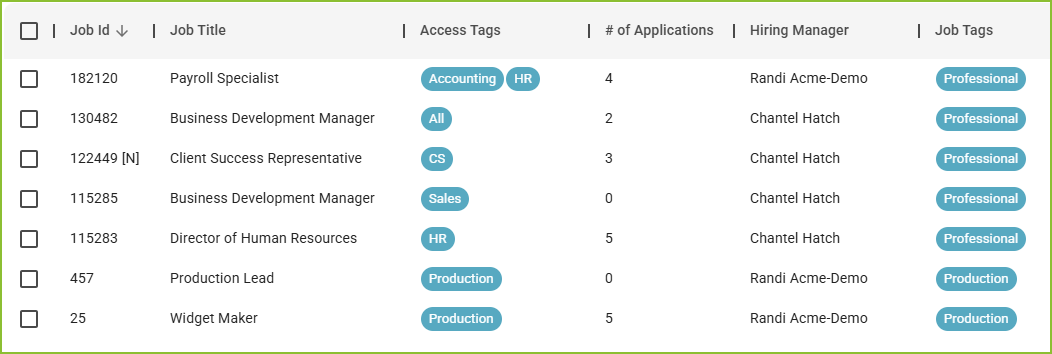
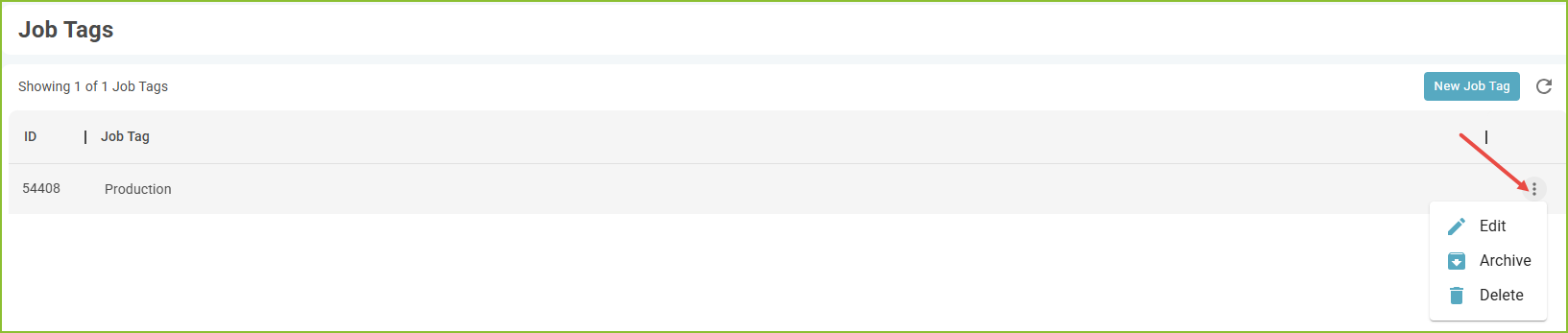
Users can create, edit, archive, or delete Job Tags as needed.
Creating a Job Tag
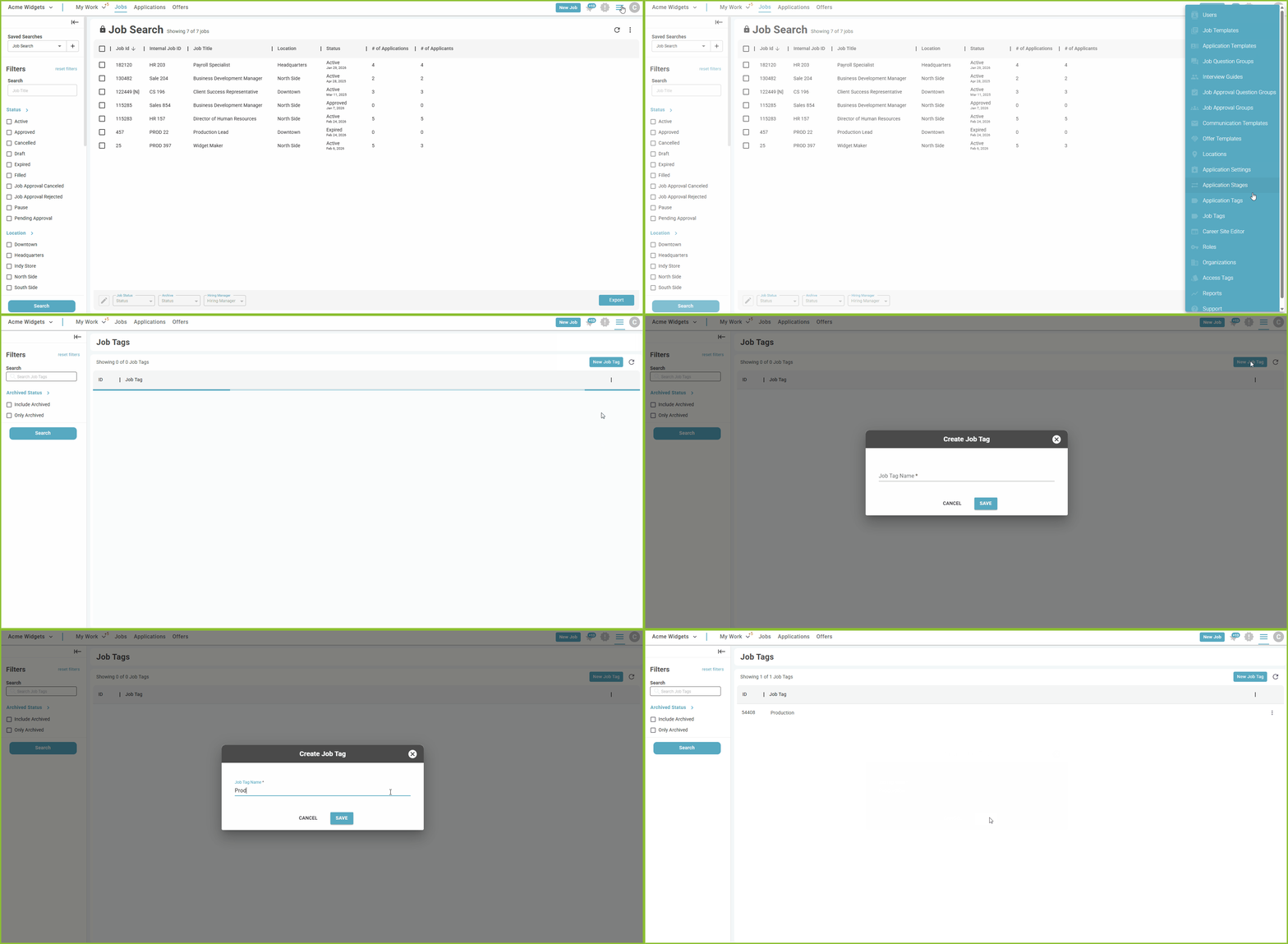
-
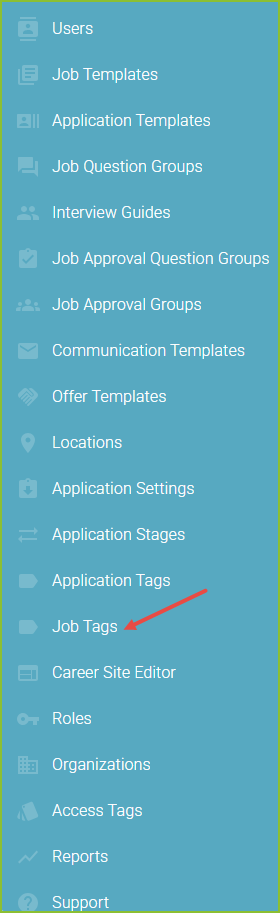
Begin in the Settings area.

- Select Job Tags.
- Click New Job Tag.

- Enter the Job Tag Name.
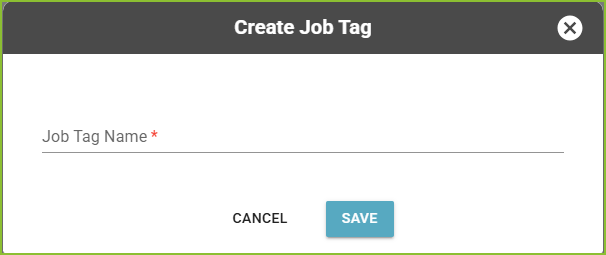
- Click SAVE.
The new Job Tag will now appear in the Job Tag list and can be used to label jobs.
Managing Job Tags
Once Job Tags have been created, users can manage them in several ways:
- Edit a Job Tag - Update the name of an existing Job Tag.
- Archive a Job Tag - Archive Job Tags that are no longer needed for future use.
- Archived Job Tags remain in the system for historical reference.
- To include archived Job Tags in your list view use the filters to adjust the view.
- Delete a Job Tag - Permanently remove a Job Tag if it is no longer needed.
Assigning Job Tags to a Job
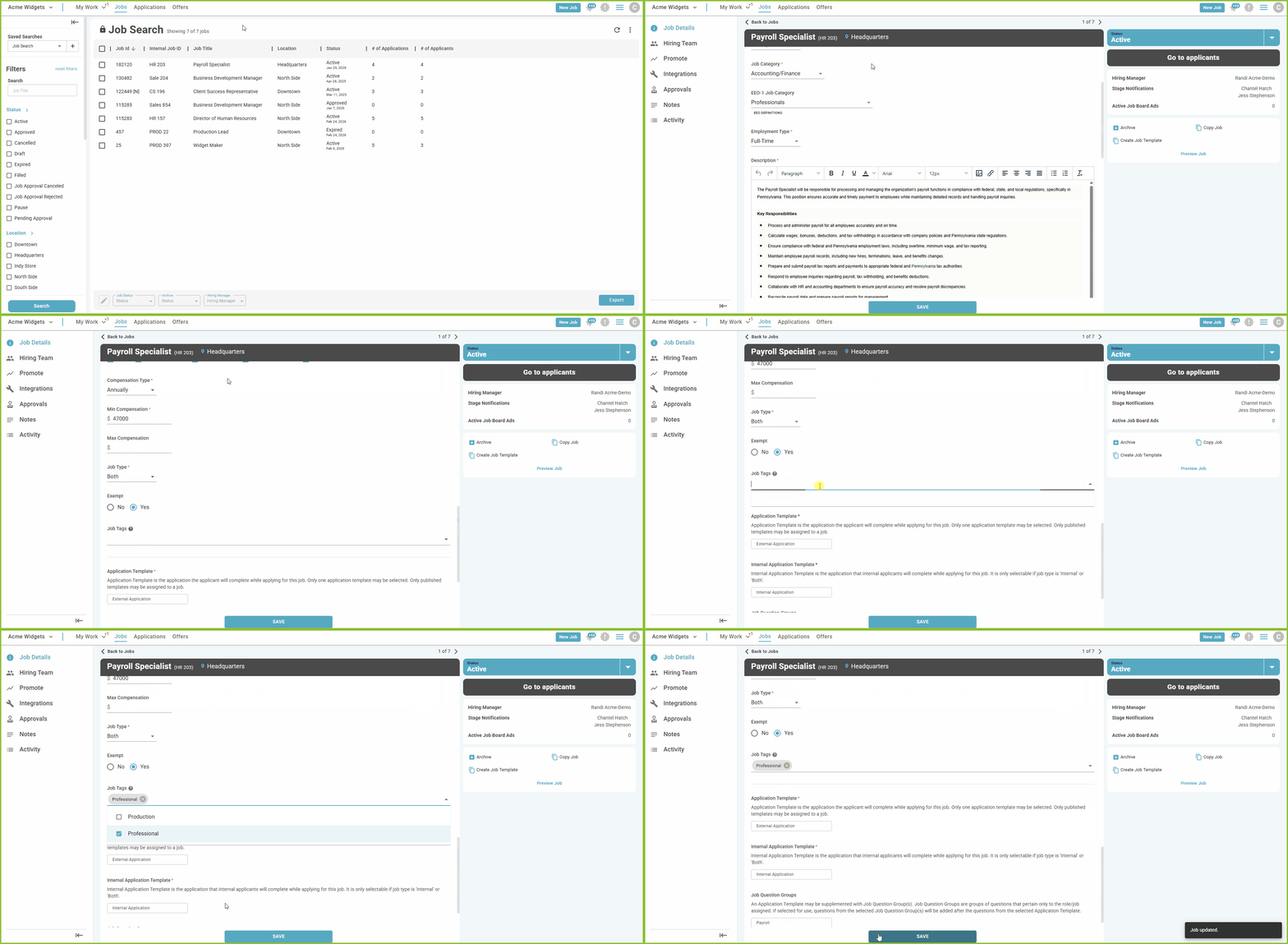
One or more Job Tags can be assigned to a job to help categorize and organize.
- To assign Job Tags open the Job you want to update.
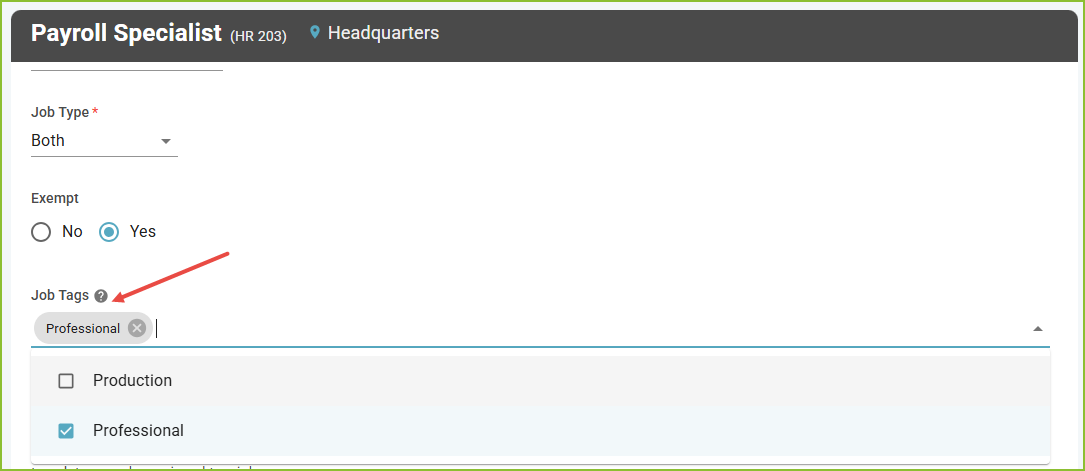
- Locate the Job Tags field.
- Select one or more existing Job Tags from the list.
Create a New Job Tag While Assigning
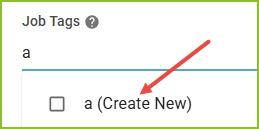
- If the tag you need does not already exist, simply type the new Job Tag name into the Job Tags field.
- The system will automatically create the new tag and assign it to the job.
Viewing Job Tags on Jobs
Job Tags assigned to a job can be viewed in two places:
- Job Details View - Displays the Job Tags associated with an individual job.
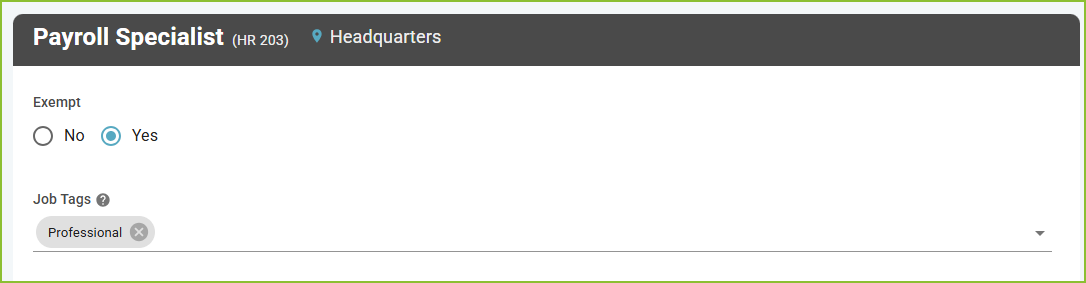
- Main Jobs List View - The Job Tags column can be added as a column option to quickly see tags across multiple jobs.