Offer Letter template(s) must be created prior to initiating the Offer Letter workflow with an applicant. When customizing an Offer Template(s), users will add properties and fields for each stage of their offer workflow.
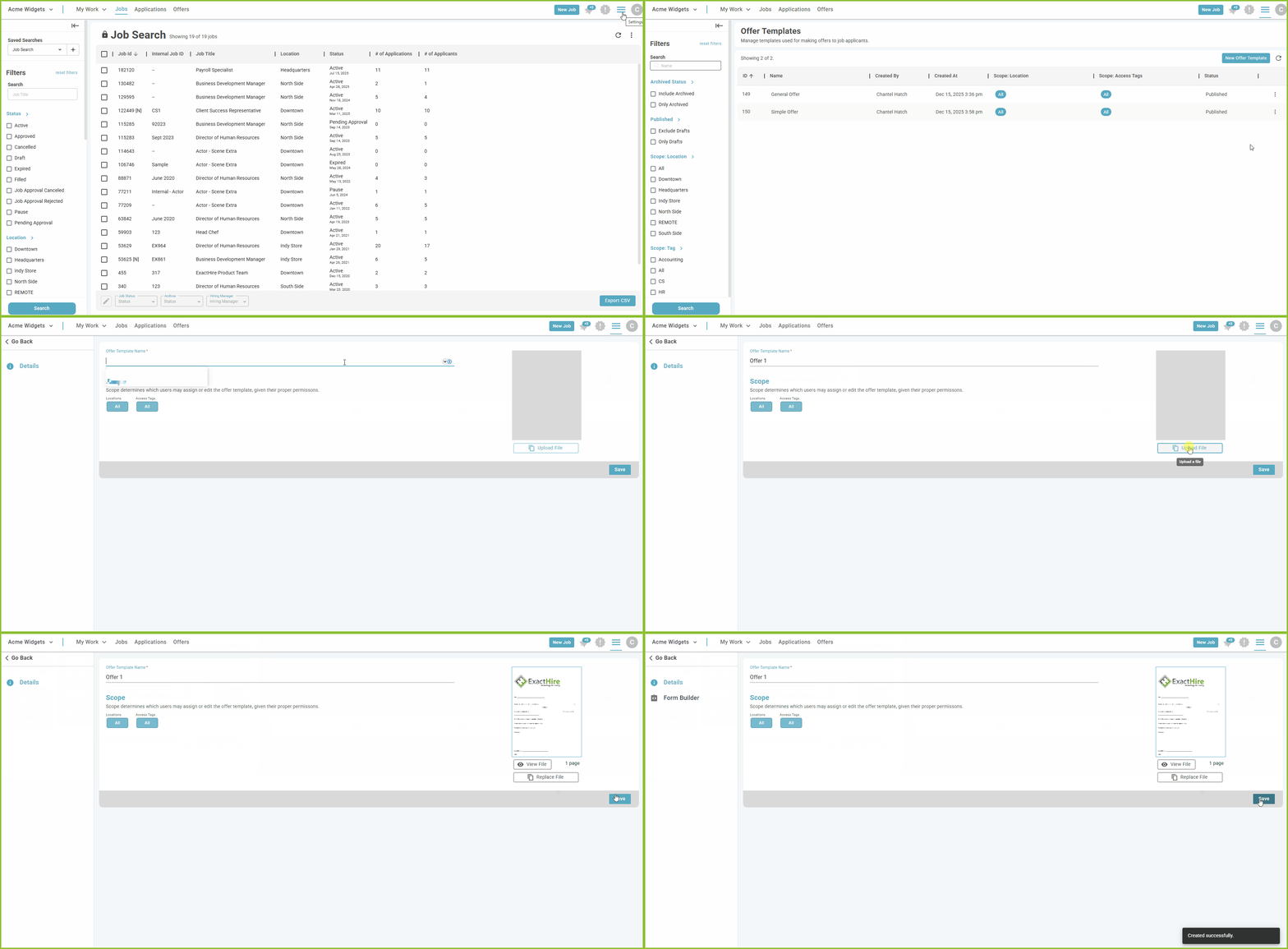
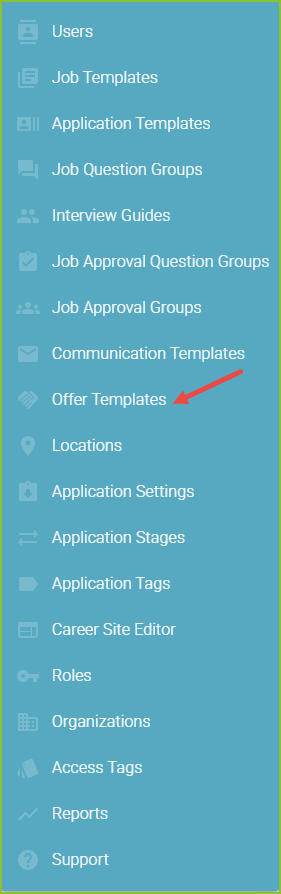
- To create an Offer Letter Template, begin in the Settings area.

- Click on Offer Templates.
- Click New Offer Template to create a new Offer Template.

- Input the Offer Template Name.
- Assign Scope to the Offer Letter Template, as needed.
- Use Upload File to upload a PDF version of the Offer Letter.
- Please note only PDF files are compatible with the Offer Template builder.
- Helpful Hints:
- Leave blank spaces or simple underlines in areas of the PDF that you would like the system or participant to populate rather than filling the space with reminders such as (first name).
- Leave enough space to accommodate the entry provided by the system or participant. The entry content visible in the entry box is the full entry that will be visible in the completed print version.
- Standard font is Ariel 12 point.
- Click SAVE.

- At this stage the user may replace the PDF document as needed.
- Please note, after the Form Builder has been customized and published the PDF document can no longer be replaced. A new Offer Template would need to be created.
- Use the Form Builder tab to customize the Offer workflow for this Offer Template.
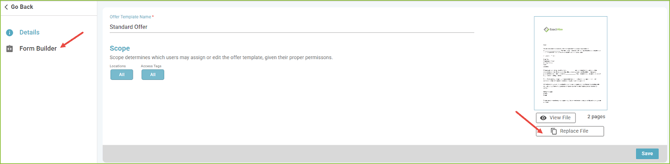
Form Builder
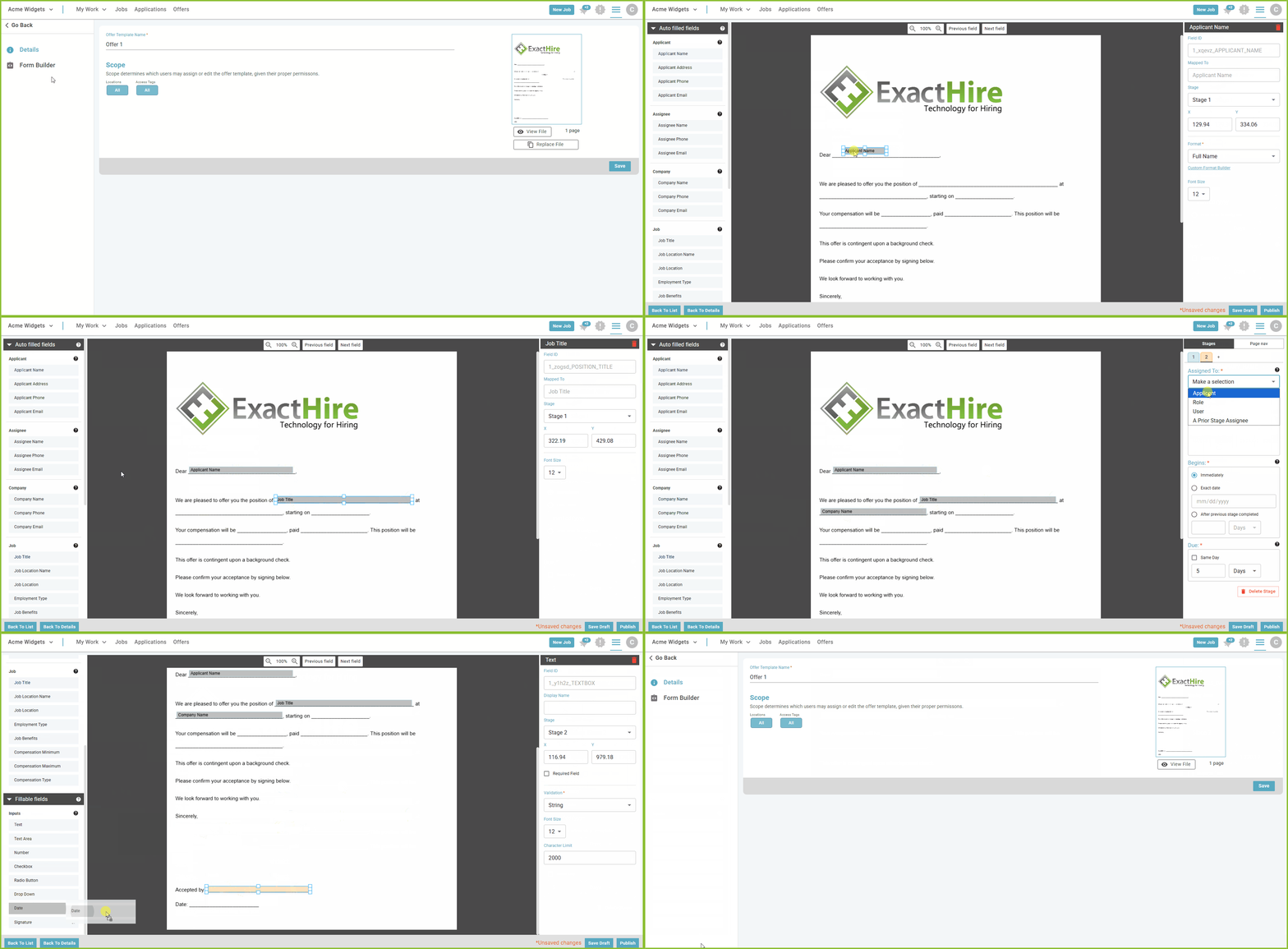
Before the full Form Builder becomes available, the user must Create the First Stage of the form.
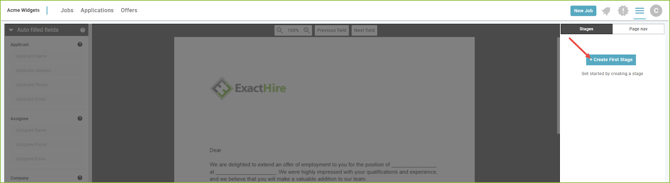
- Click + Create First Stage and set its details.
- Assigned To: Determine who should be assigned to complete the first stage - Applicant, Role, or User.
- Name: Name the stage. Please note, the name will be visible to all participants.
- Description: Optional description space to provide instructions to the Assignee. Please note, the description will be visible to all participants.
- Begins: Determine when the stage will be assigned.
- Due: Determine when the stage is due.
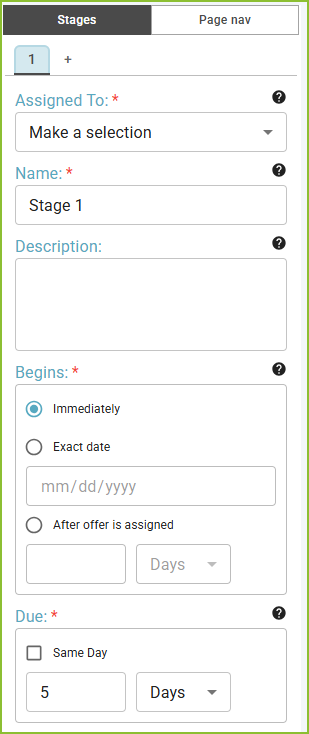
- Add the form fields that will make up the first stage.
- Find the relevant field(s) in the Input Sidebar using either Auto filled fields or Fillable fields.
- Click and drag the field onto the form including adjusting the size and shape of the field.
- The size and shape of the field will dictate the overprint boundaries. The overprinted string will continue on a new line if it reaches the end of the row. If there is no more space within the boundaries of the field, the overprinted value will be truncated.
- While the field is selected, the user may use the arrow keys to fine-tune the placement of the field.
- The field properties sidebar also includes X/Y inputs where the positioning of the field can be updated directly by updating the values.
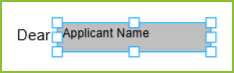
- Edit other properties and validation rules for the field using the properties sidebar, such as Display Name and requirement, if needed.
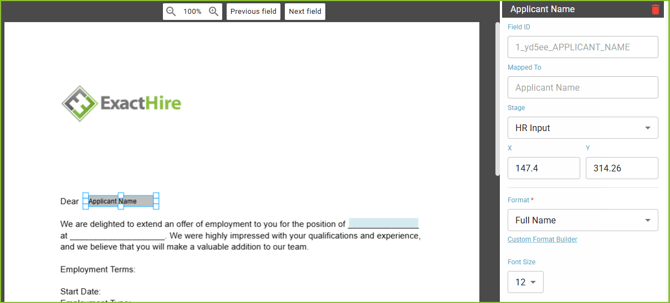
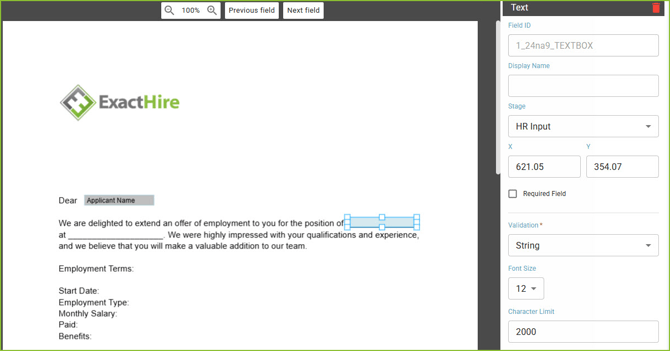
- Continue adding fields as needed until the stage is complete.
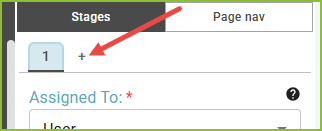
- Use the Plus to add additional Stage(s) including fields, as needed. Fields on the form will be color coded by stage.
- Fillable fields will show a color background that corresponds to the stage color.
- Auto filled fields will show a grey background with an outline of the stage color.
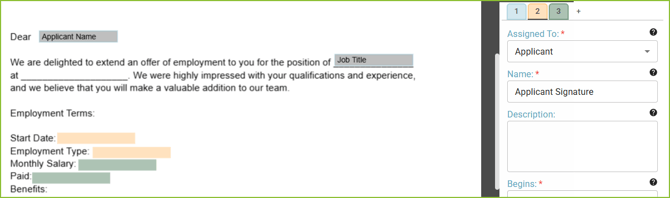
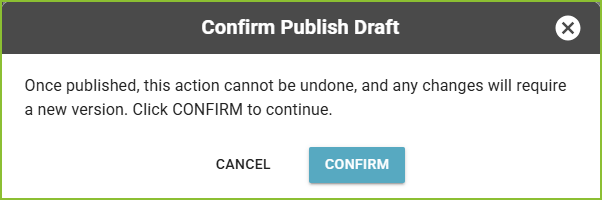
- When all stages and all fields for the form are configured use Save Draft and/or Publish to save the Offer Letter template.

- Please note that a published Offer Letter Template cannot be changed. The Form Builder is accessible for published forms as read-only.