
Use your PDF Offer Letter Template(s) within the ExactHire ATS to allow user(s) and applicant(s) to input information and sign.
Create an Offer for an Applicant
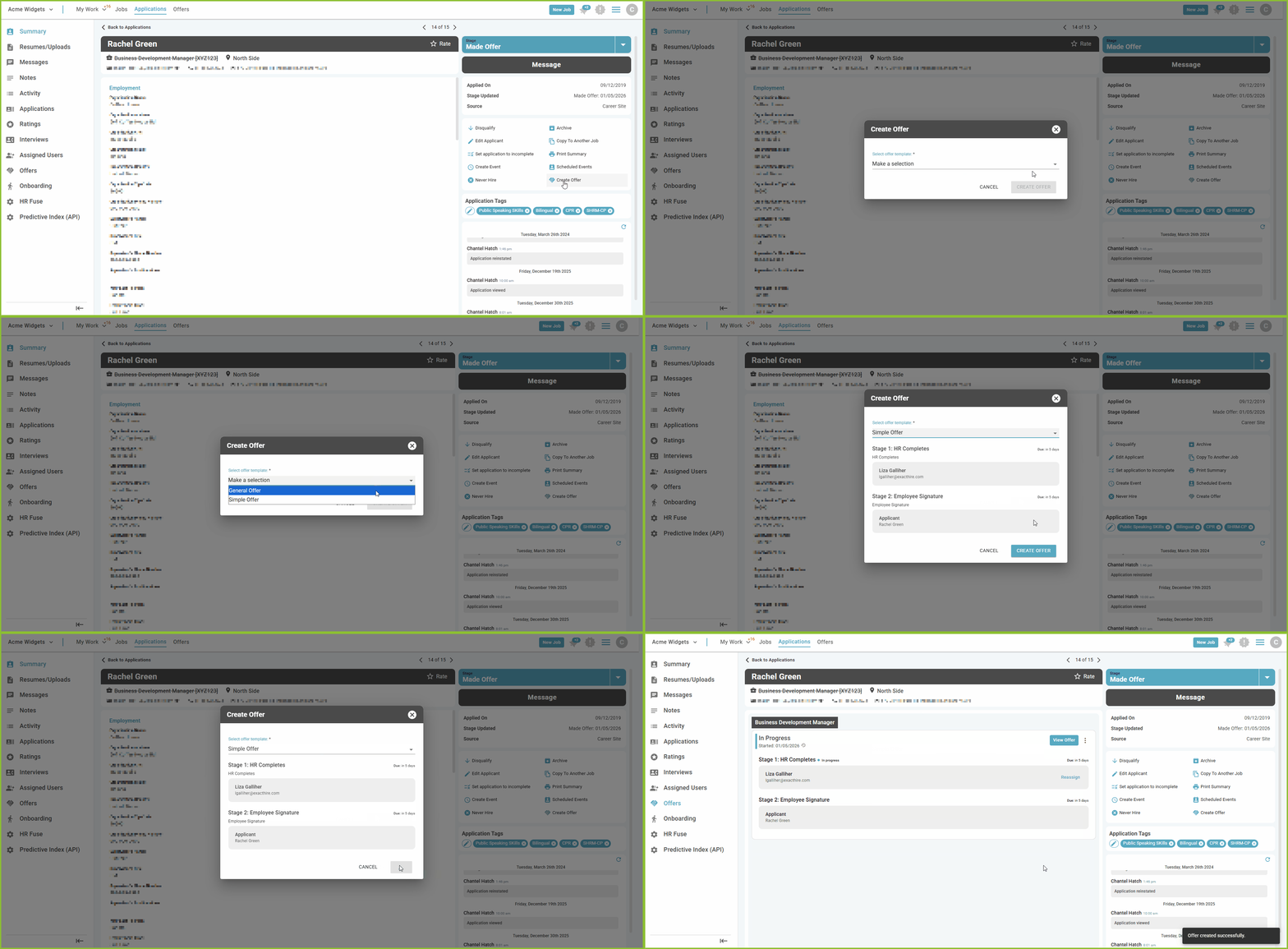 Once the Offer Letter Template has been set up, an offer may be created for an applicant.
- Locate the Application using the APPLICATIONS area and the search tools.
- Open the Applicant Record by clicking on the applicant name.
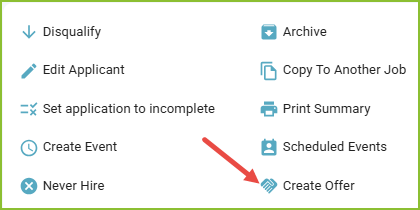
- Click CREATE OFFER.
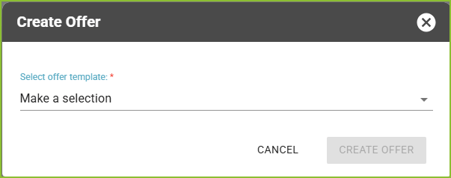
- Select the Offer Template to begin the offer workflow.
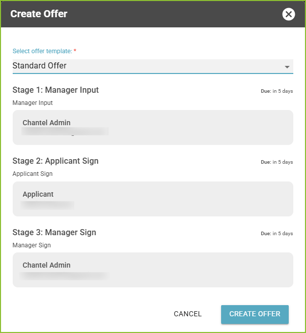
- Verify the information for the Offer workflow is correct and click CREATE OFFER.
- If the information is not correct, refer to the Offer Template before creating the offer.
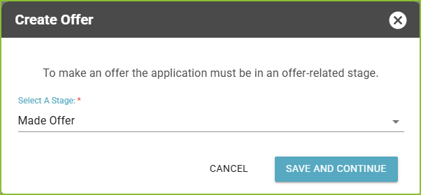
- PLEASE NOTE: The Application Stage for the applicant must be in a Made Offer stage in order to initiate the Offer workflow. If the Application Stage is not in a Made Offer stage, the user will be prompted to change the Application Stage.
- If the applicant is already in an appropriate Made Offer stage, this step will be skipped.
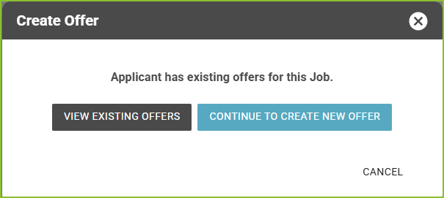
- PLEASE NOTE: If an Offer already exists for the applicant and/or application record, a warning will appear.
- If there is no existing Offer attached to the applicant, this step will be skipped.
Complete an Offer - User
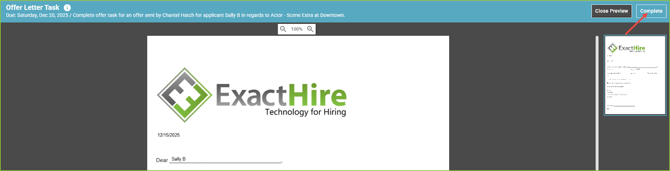
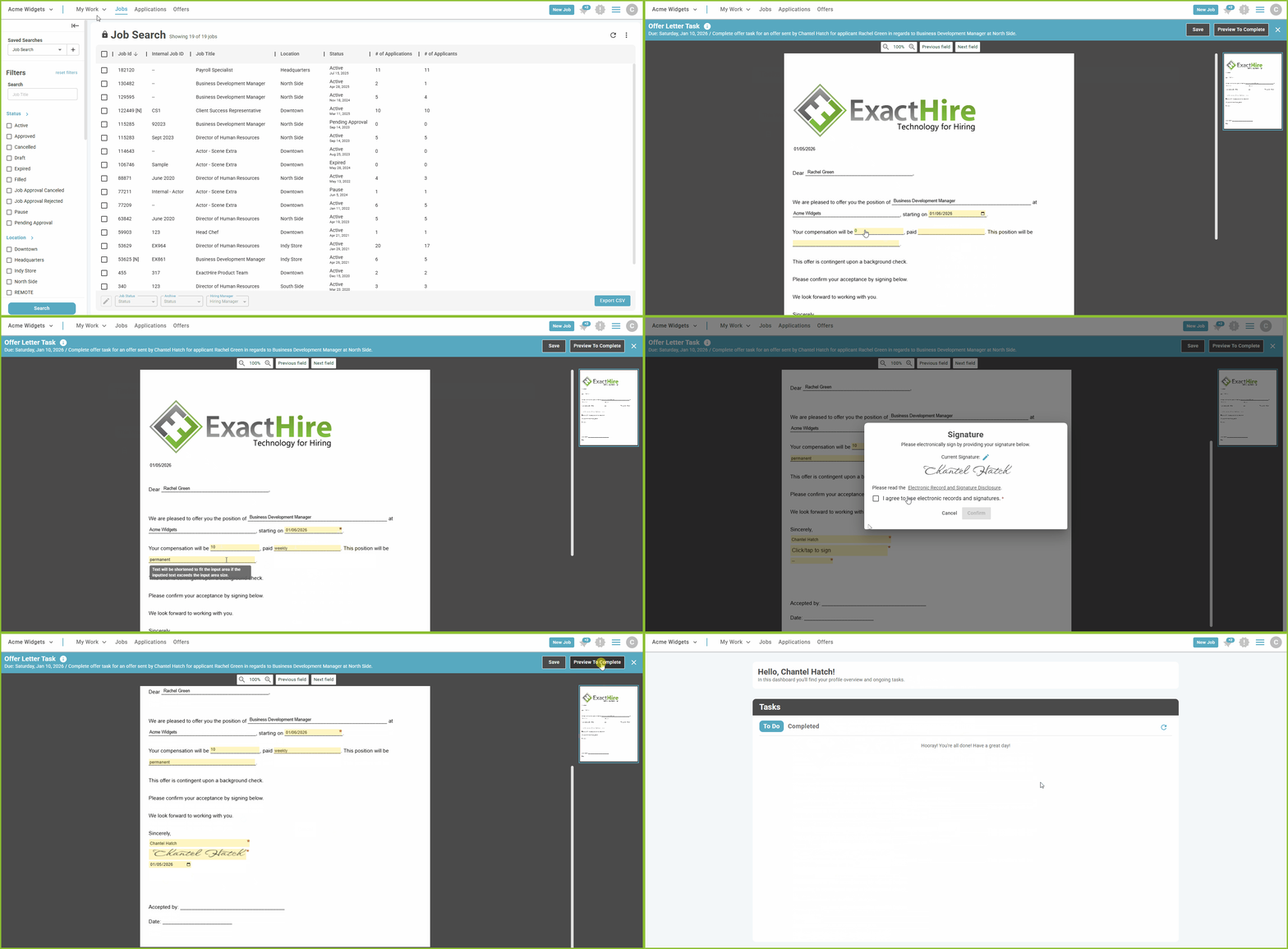 Each user within an Offer workflow stage will be assigned a My Work task when that stage becomes active.
- After creating a new Offer, the user will be prompted to complete their task immediately if they are a member of the first stage of the workflow.

- The user will input any required information into the highlighted fields.
- Click Continue Later to save progress and return later.
- Click Preview to Complete to preview the form prior to completing.
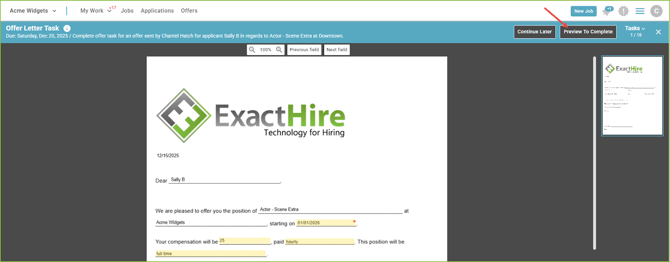
- Click Complete to submit the form.
Complete an Offer - Applicant
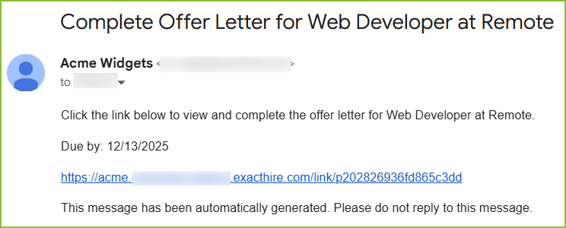
- The Applicant will receive an email or SMS message inviting them to complete the Offer task. The applicant will follow the instructions and use the link within the message to access the task within their applicant account.
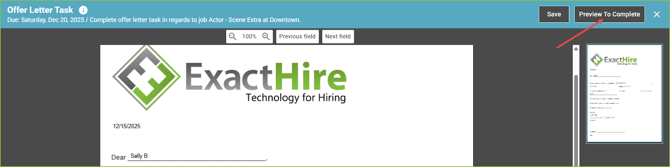
- Within the Task, the applicant will input any required information into the highlighted fields.
- Click Continue Later to save progress and return later.
- Click Preview to Complete to preview the form prior to completing.
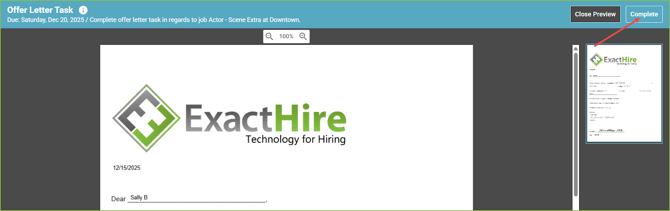
- Click Complete to submit the form.
Tracking and Completed Offer
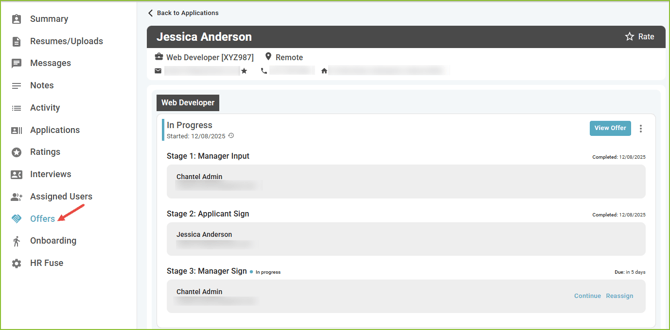
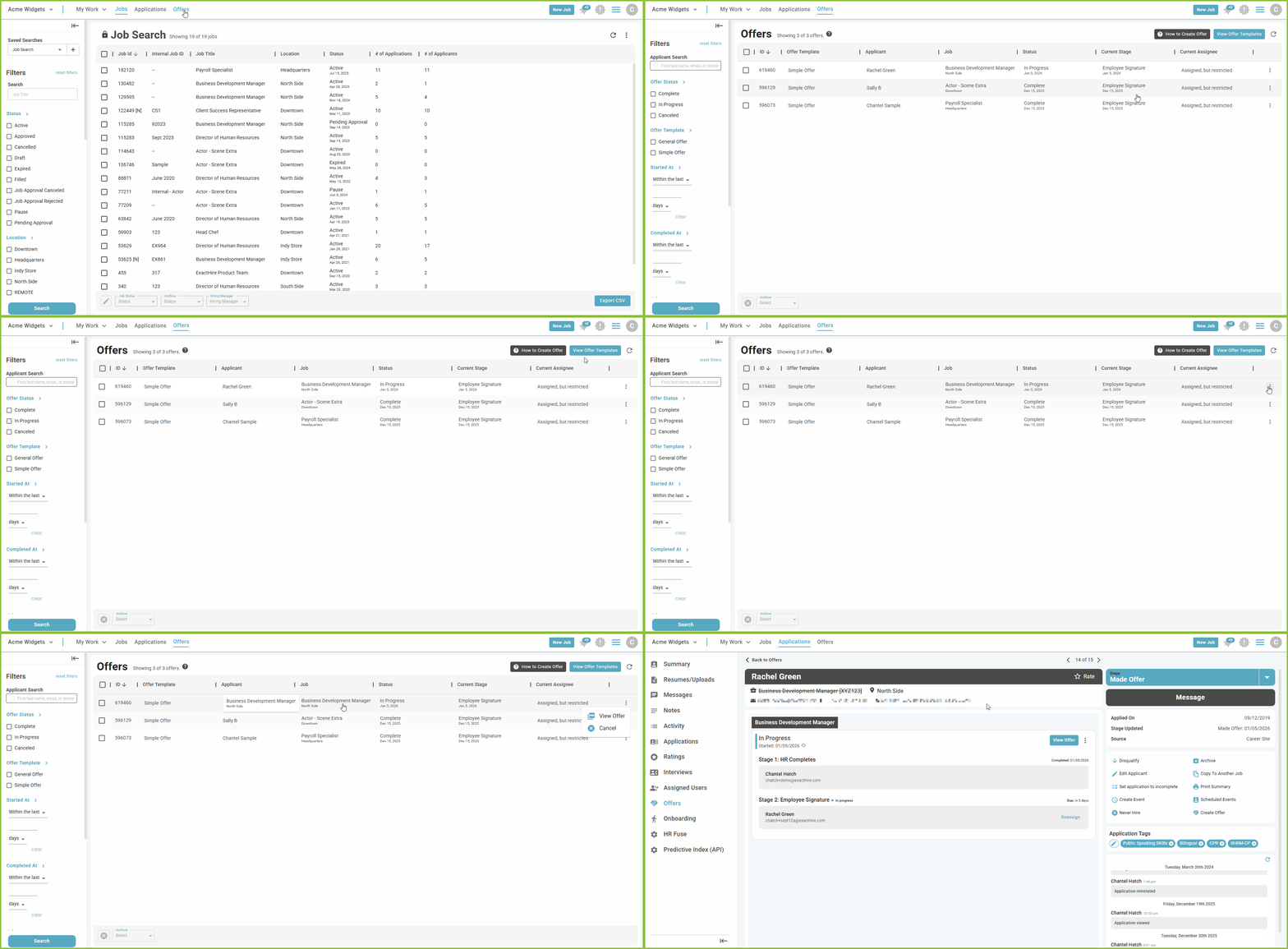 Users can monitor the progress of the Offer on the Offers tab of the Applicant Record and in the OFFERS area.

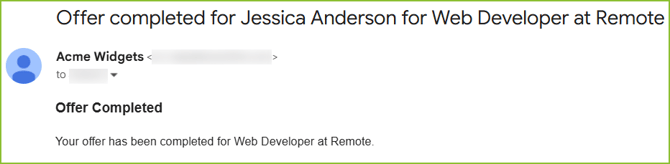
When the Offer workflow is complete a notification will be sent to the creator of the Offer and the applicant.
Out of Scope Users
It is possible for a User that is not within the scope of the applicant record to be included in the process of completing the Offer Letter. The out of scope User will receive a notification and task to complete their step in the Offer Letter process. The out of scope User will be able to access the task in their My Work area and complete their task.
The out of scope User will not have access to the relevant applicant record, nor will they be able to see the Offer in the OFFERS area. The out of scope User will not receive a notification when the Offer is completed. The out of scope User will have access to their completed task in their My Work area, which allows the User to see the Offer Letter at their stage of completion but not containing any information provided in subsequent stages.