
There are several ways to screen applications within the ExactHire ATS. Begin in the APPLICATIONS area. Work with applications in mass or individually.
Mass Changes
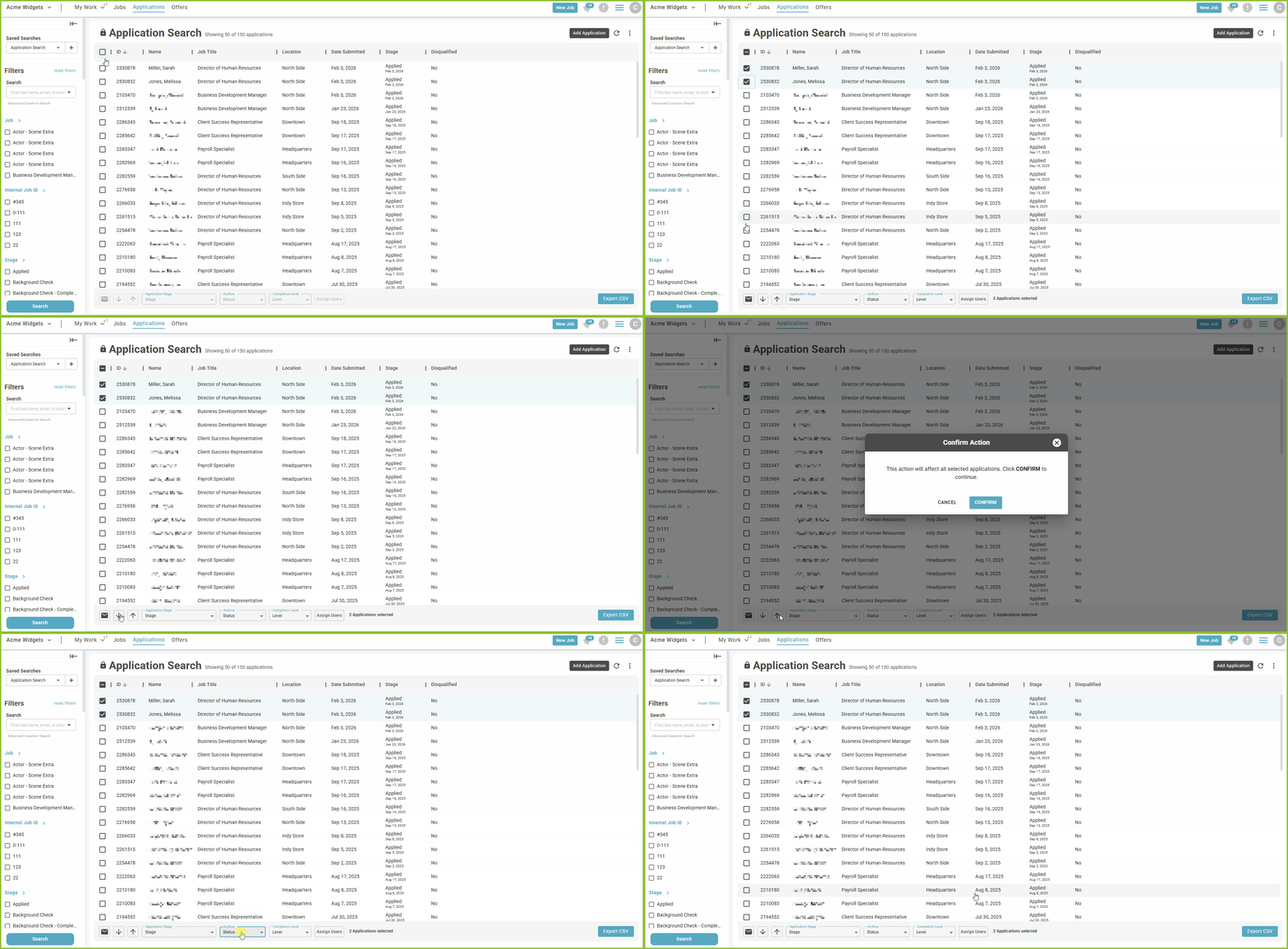
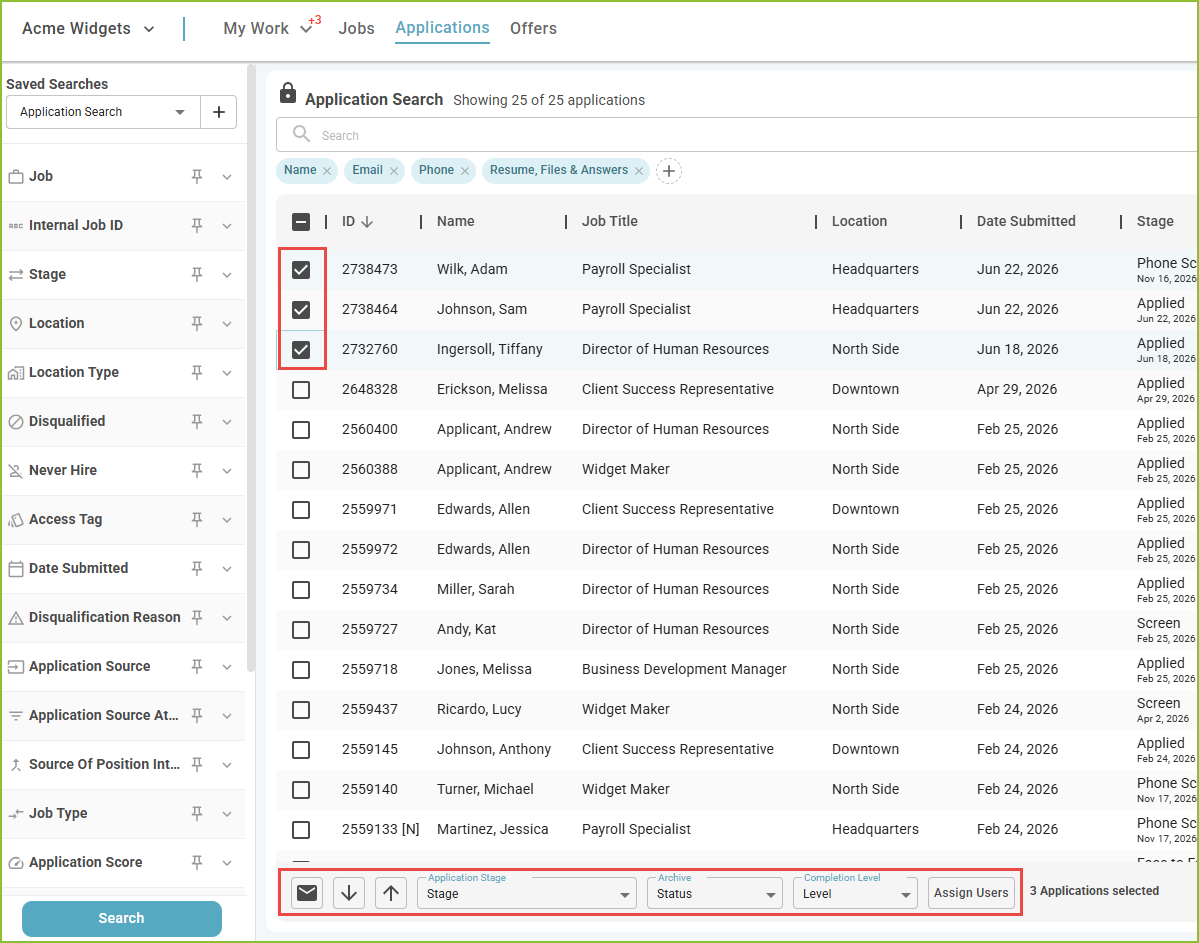
To make a mass change including Disqualify, Reinstate, Application Stage, Archive, and/or Assign to User in APPLICATIONS view, select the applicants by checking the box next to the applicant name to activate the mass action buttons.
-
Use the Email button to send an email to all selected applicants. A Communication Template may be used when creating the email message.
-
Use the Disqualify Application button to disqualify the selected applicants. The Disqualification Reason pop up will appear allowing for the selection of reason(s) for disqualification.
-
Use the Reinstate button to reinstate (remove disqualification label) from selected applicants.
-
Use the Application Stage drop down menu to select a new application stage for the selected applicants. The Advancement Reason pop up will appear, allowing for the selection of reason(s) for the stage change.
-
Use the Archive Application drop down menu to archive or unarchive the selected applicants.
-
Use the Assigned User - Assigning Applicants to Selected Users button to assign the selected applicants to specific user(s).
Screen Individual Applications
-
Begin by selecting the applicant using the filter options available.
-
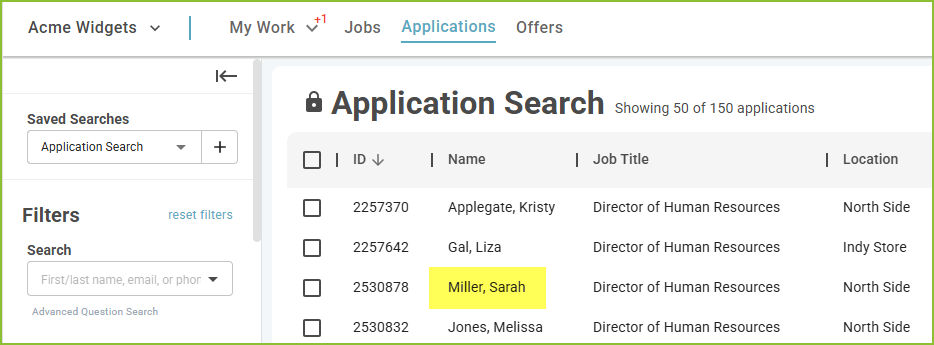
Click on the applicant name to open the Application Detail.
Application Answers
-
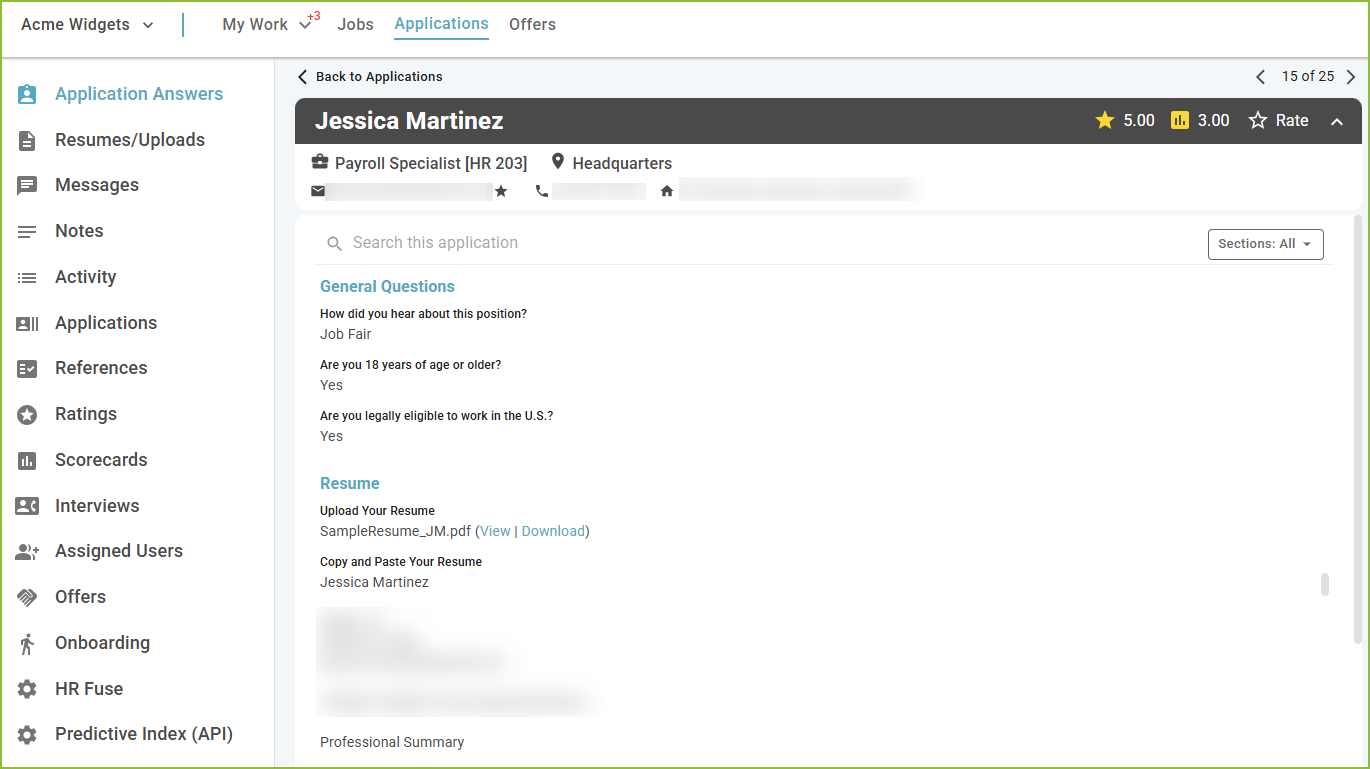
The user will be taken to the Application Answers tab of the Application Detail. The Application Answers area contains the applicant’s contact information along with any questions asked on the application, grouped into specific sections.
Resume/Uploads
-
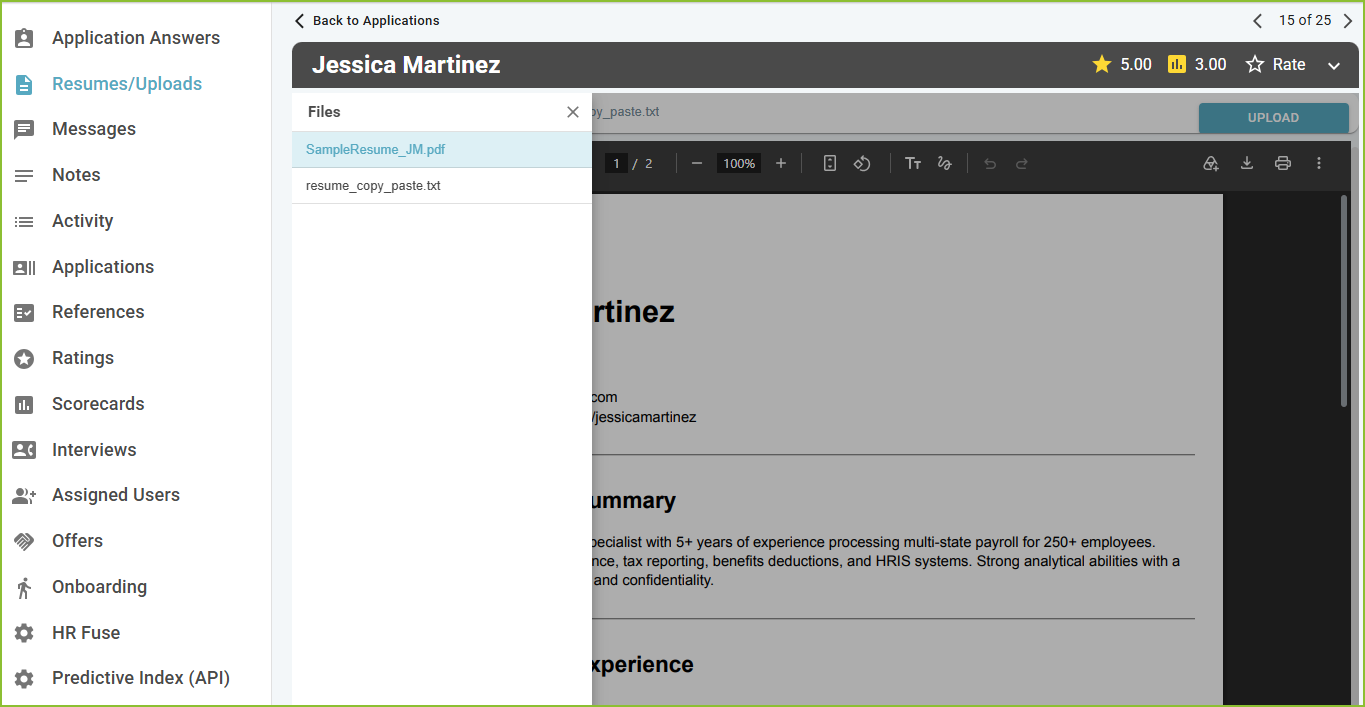
Use the Resume/Uploads tab to view resume document(s) provided by the applicant and/or documents uploaded by an Admin user.
-
To view an uploaded document click the file name. Depending on the format of the document, the user will download the document or view the document information on screen.
-
-
Users may upload new documents to be stored in the Admin Uploaded Files area using the Upload button.
Messages
-
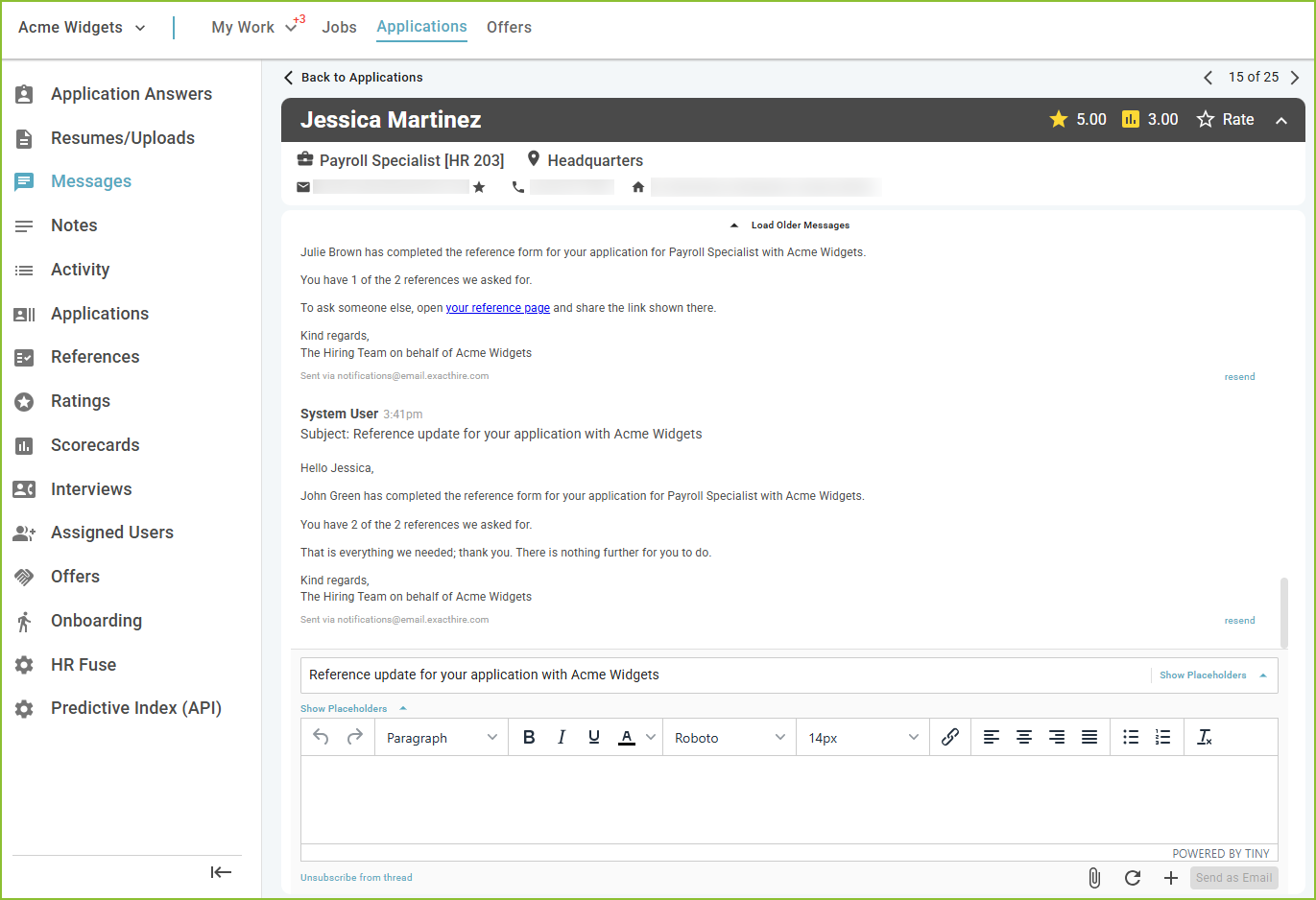
Using the Messages tab, the user may send communication to the applicant through email or SMS message.
-
If the applicant did not check the box indicating that text messages were okay at the time of application, Send as SMS will not be available for use.
-
-
Users may create a unique message in this area or use a previously created Communication Template.
-
To create a unique message, Placeholders and formatting options can be used to create the message in the message box.
-
Messages may include attachments by using the Upload File button.
-
To create a message using a Communication Template, use the + Button to select the Communication Template.
-
If sending SMS Messages, users are encouraged to keep messages short in length.
-
Notes
-
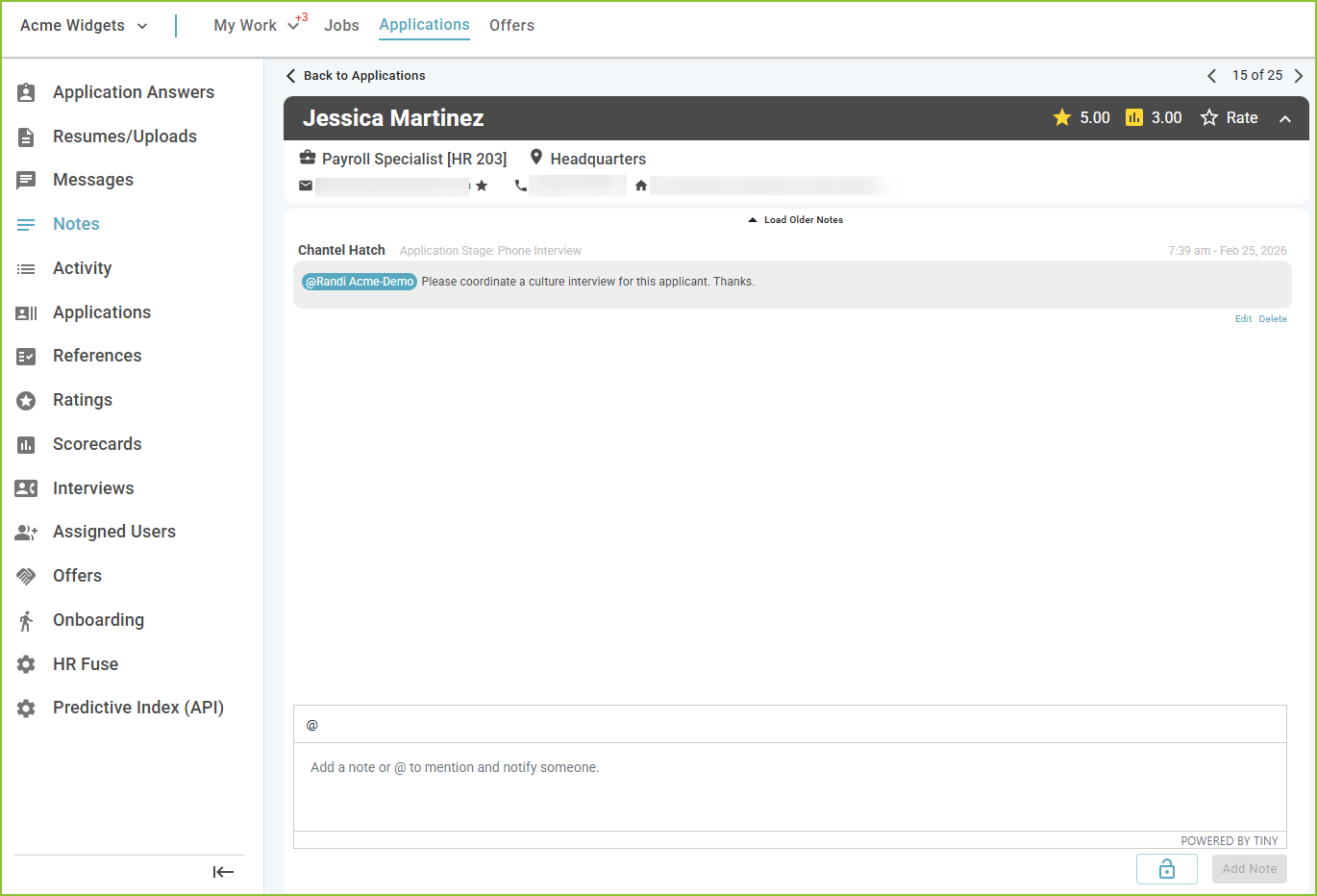
On the Notes tab, the user may enter notes using ADD NOTE to save.
-
Notes are only visible within the ExactHire ATS and never seen by the applicant.
-
-
To add a user mention, first navigate to the Application Notes area of the Application Detail.
-
Added notes will track on this tab, as well as in the Activity tab.
Activity
-
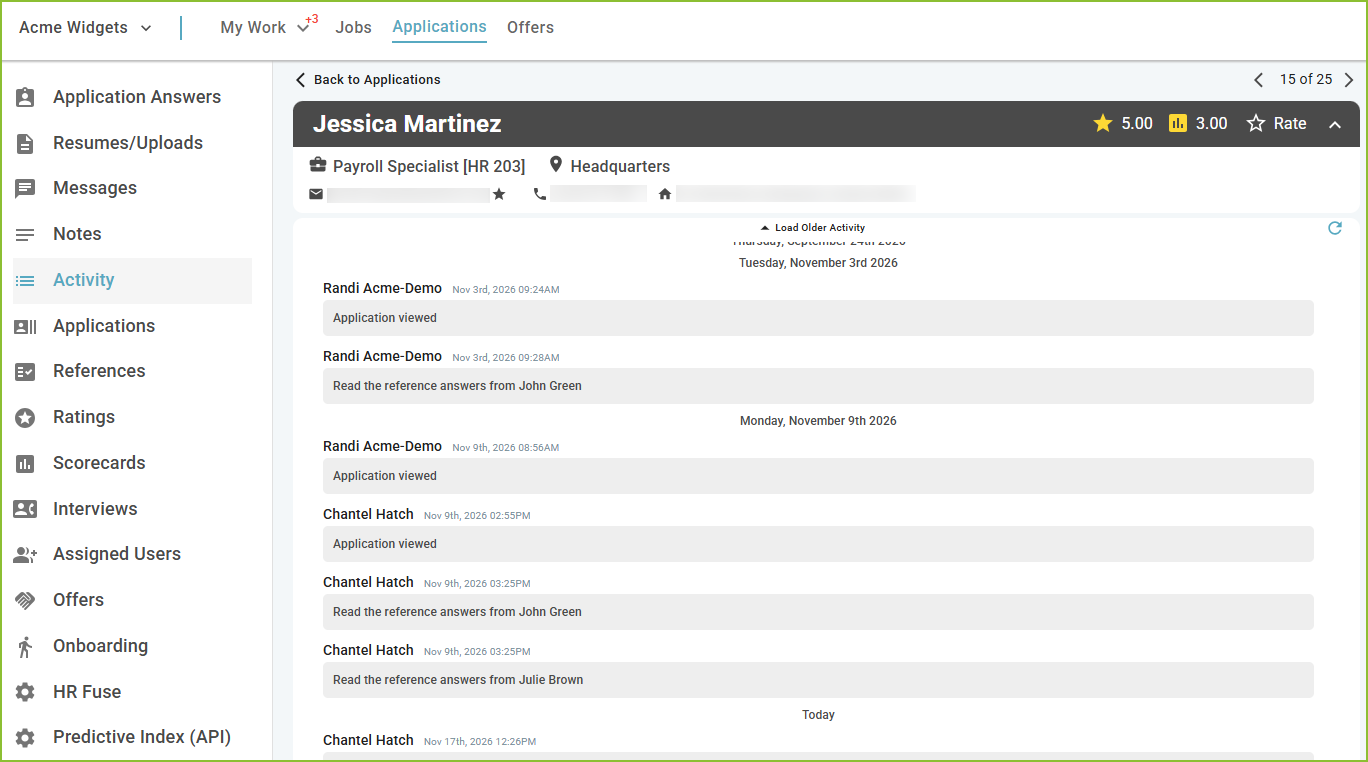
The Activity tab will allow the user to see the history activity for the application including stage changes, communication to and from the applicant, user added notes, etc.
Applications
-
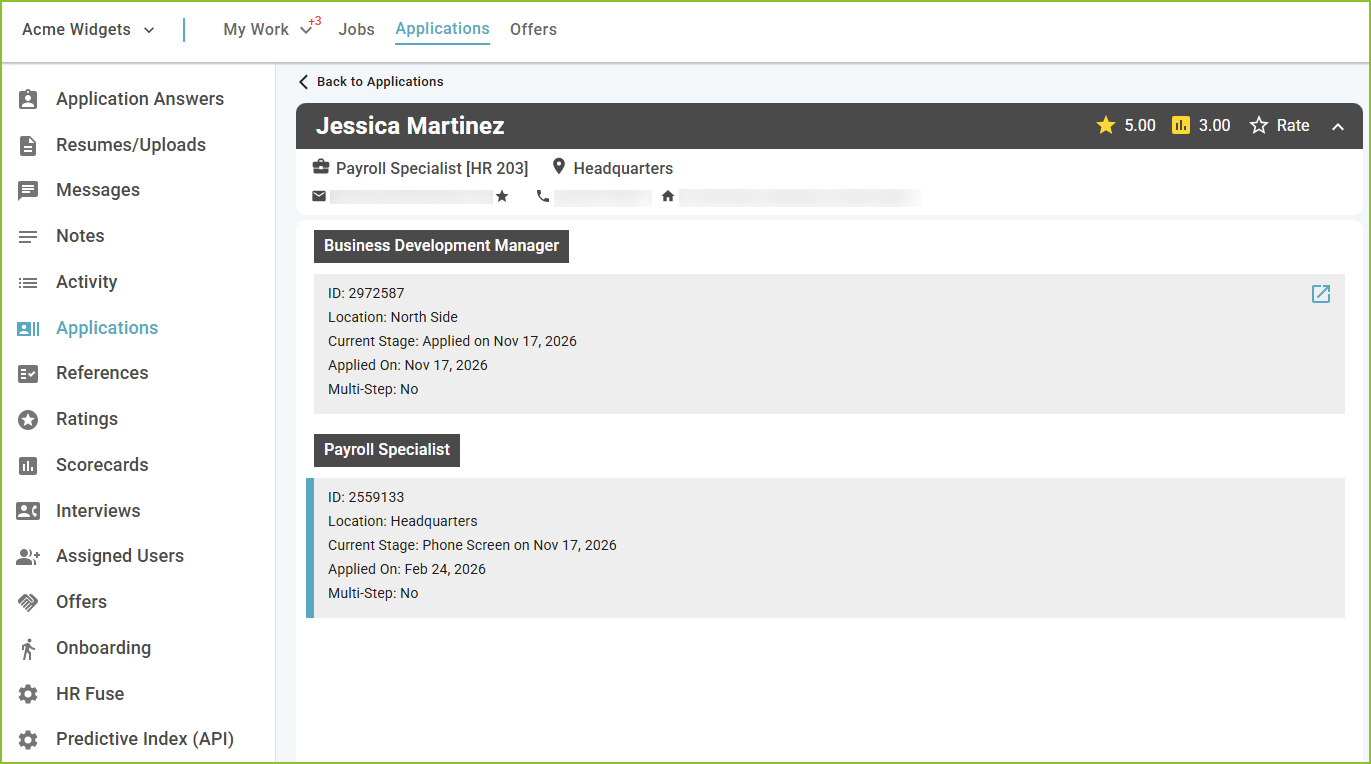
Use the Applications tab to view all application(s) submitted by the applicant.
-
The highlighted row is the application the user is currently viewing.
-
Use the Open in New Tab icon to open the additional application(s) in a new view.
References
-
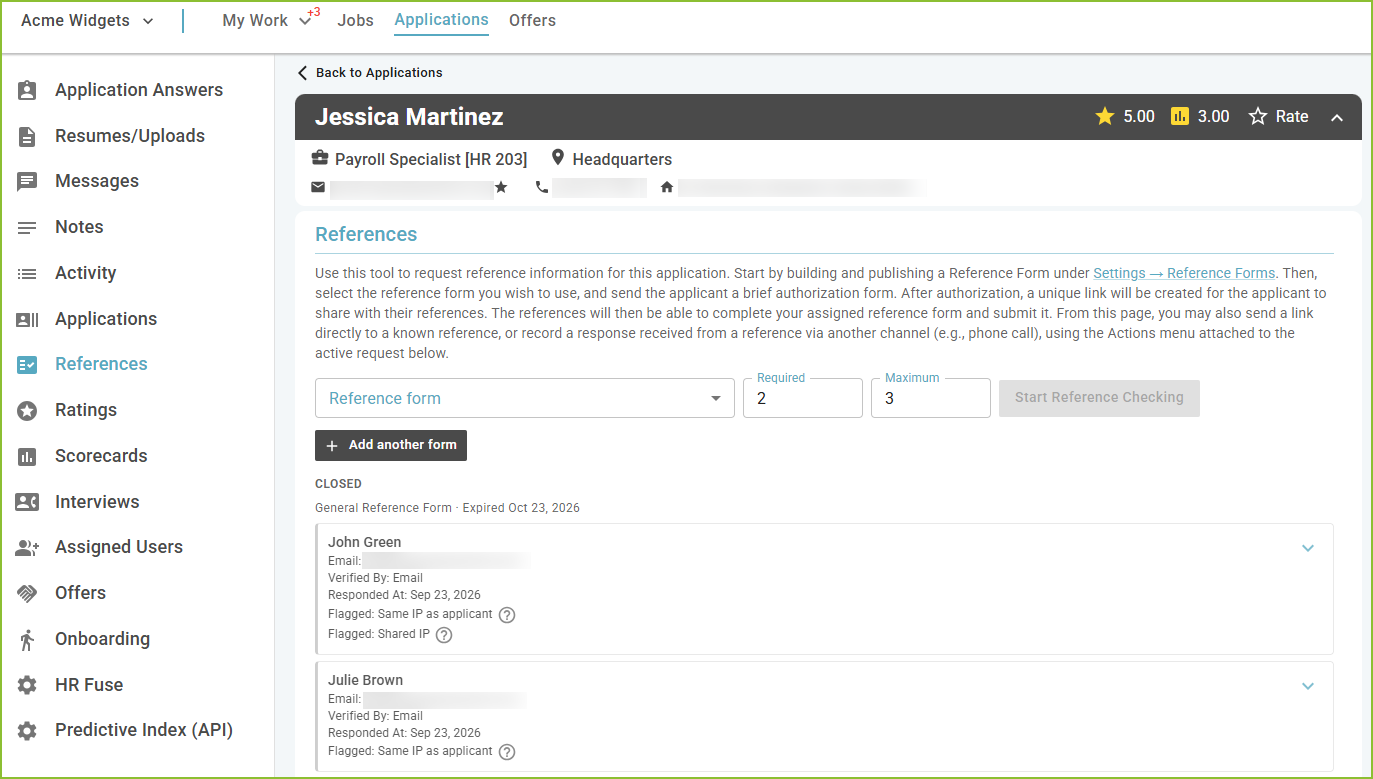
The References feature allows users to configure custom reference forms, initiate automated requests from the applicant record, and collect verified, confidential feedback.
Rating
-
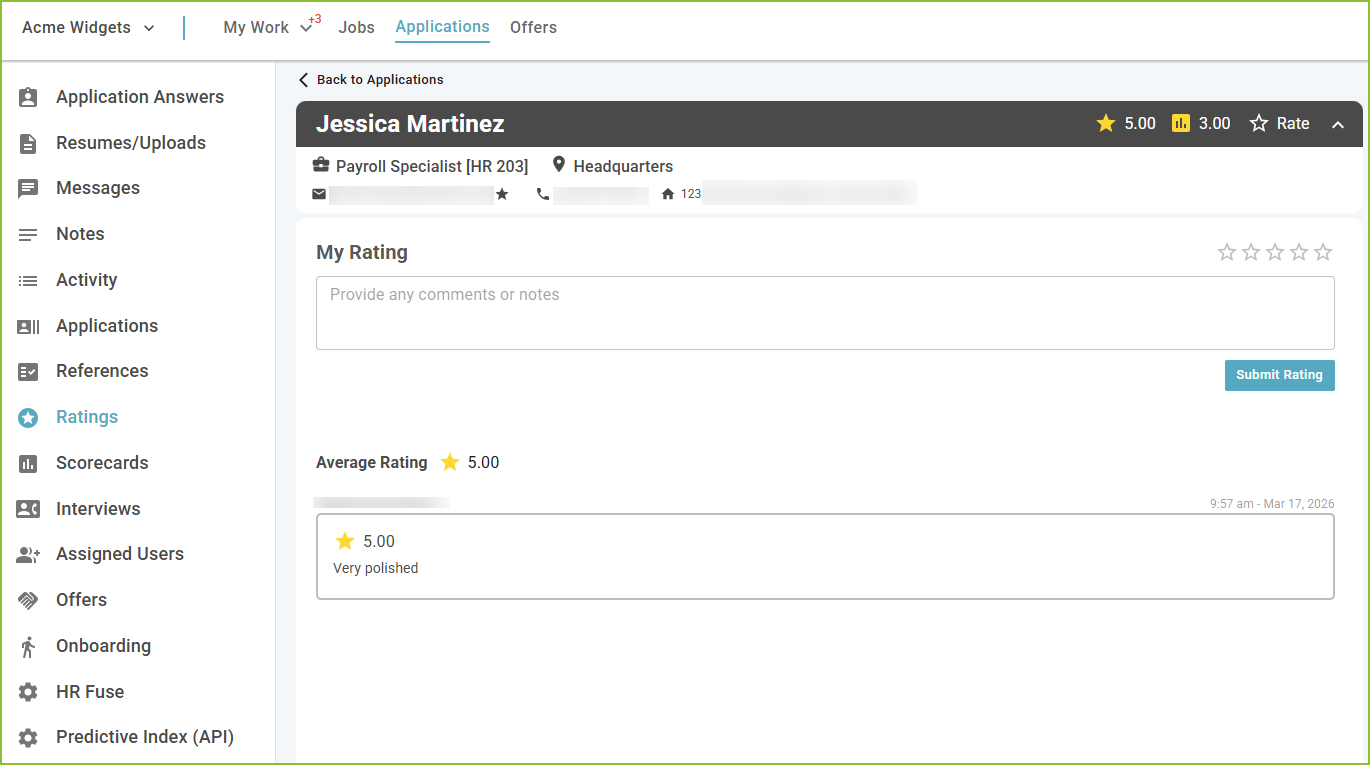
The Ratings feature allows Users, given the proper Role permission, to provide a 1 - 5 star rating and to add rating related notes on applications.
Scorecards
-
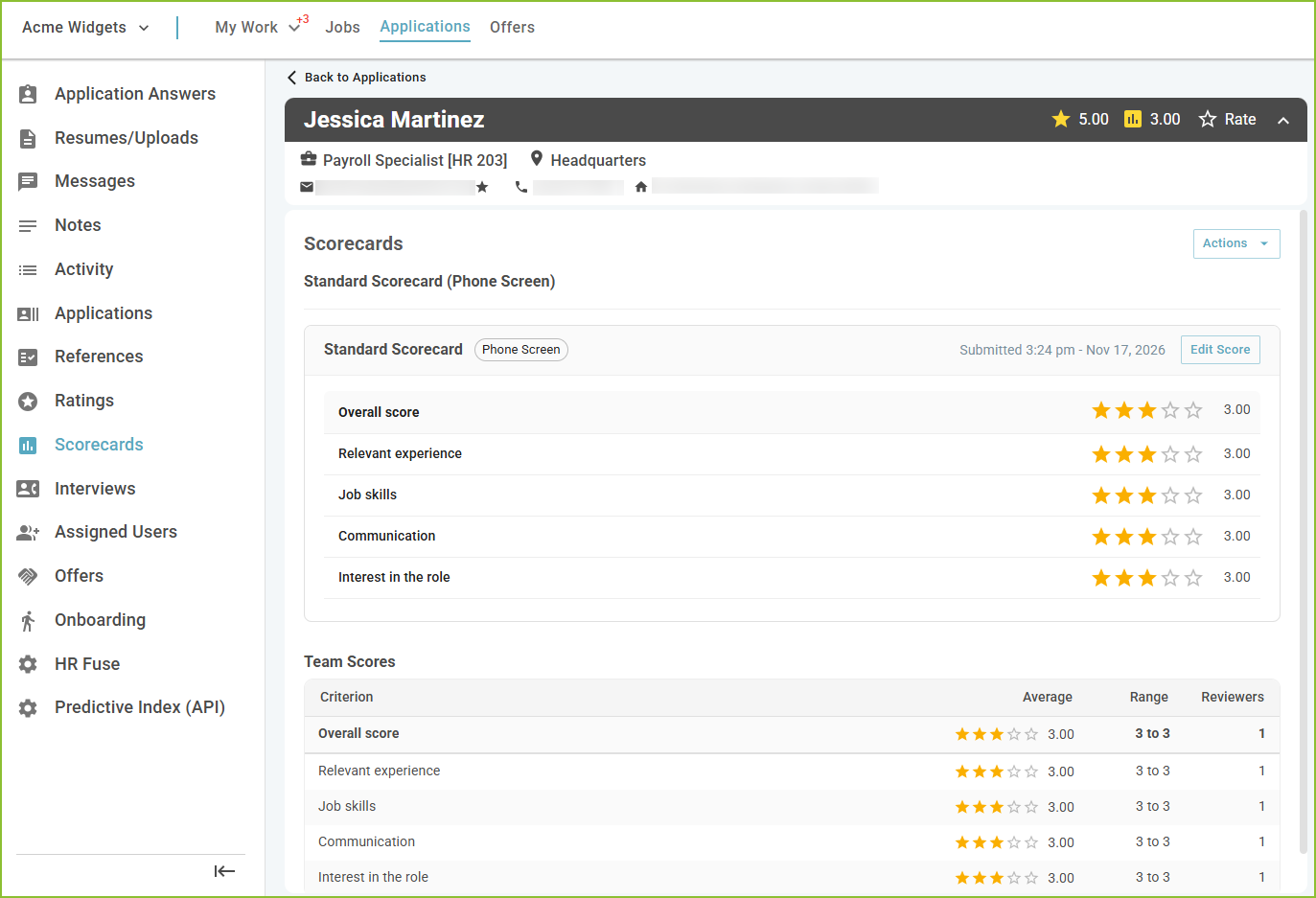
A Scorecard lets interviewers and reviewers rate an applicant on a set of criteria, each from 1 to 5 with an optional comment, and then give an overall score and a short summary.
Interviews
-
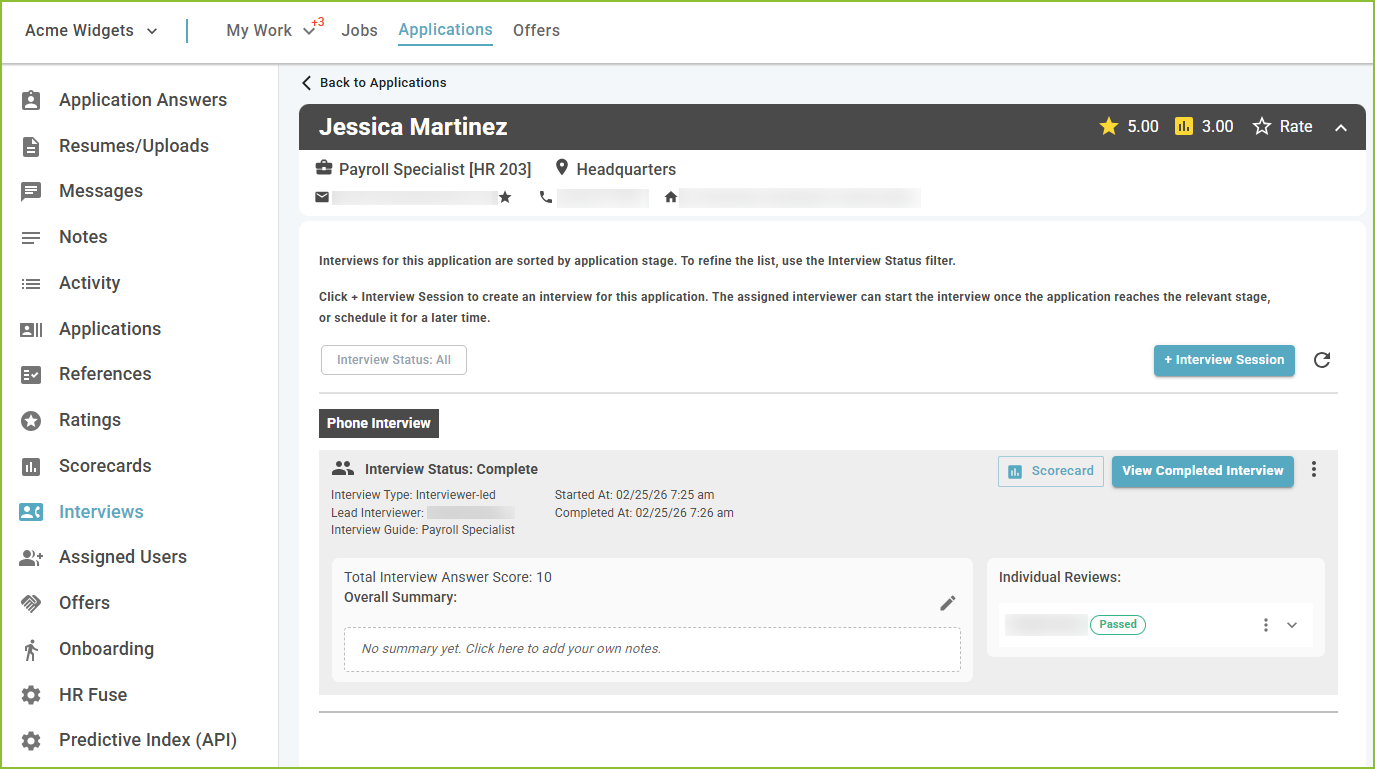
Use the Interviews tab to coordinate interviews with the applicant utilizing custom Interview Guides.
Assigned Users
-
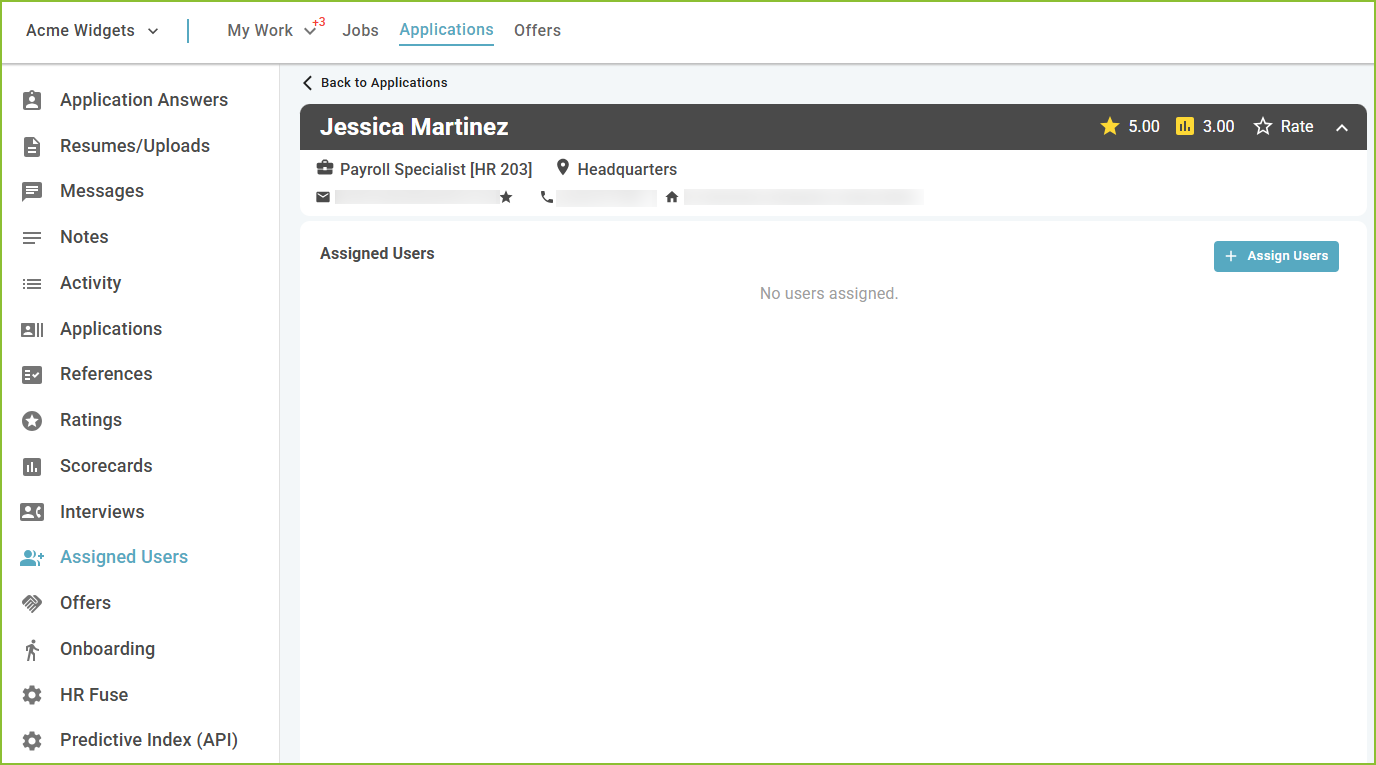
Use the Assigned Users tab to assign the applicant to specific user(s) who have been assigned an Assigned User Role.
Offers
-
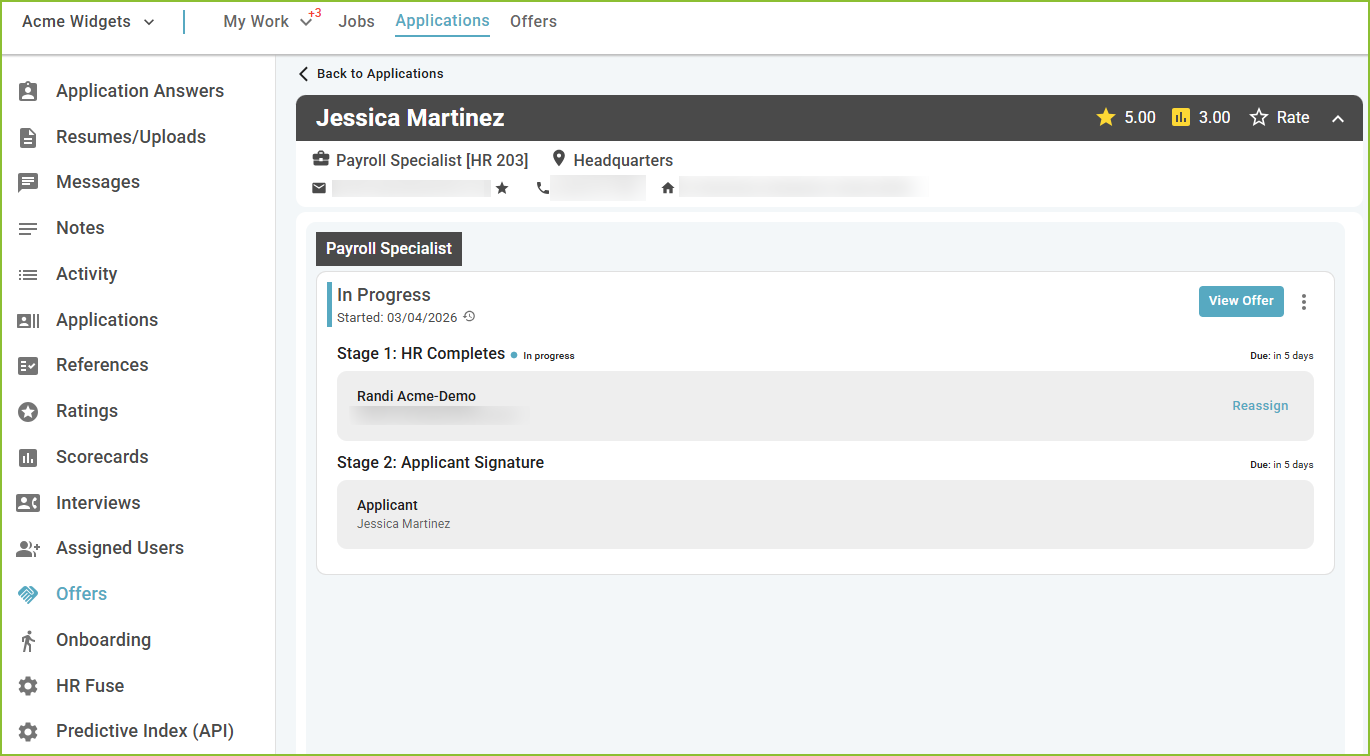
Users can monitor the progress of the Offer on the Offers tab of the Applicant Record and in the Offers area.
HR Fuse - optional
-
Use the HR Fuse tab to access assessments and/or background checks provided by HR Fuse.
Predictive Index - optional
-
Use the Predictive Index tab to access information about the applicant’s Predictive Index assessment and score.
Checkr - optional
-
Use the Checkr tab to access background checks provided by Checkr.
Action Tools
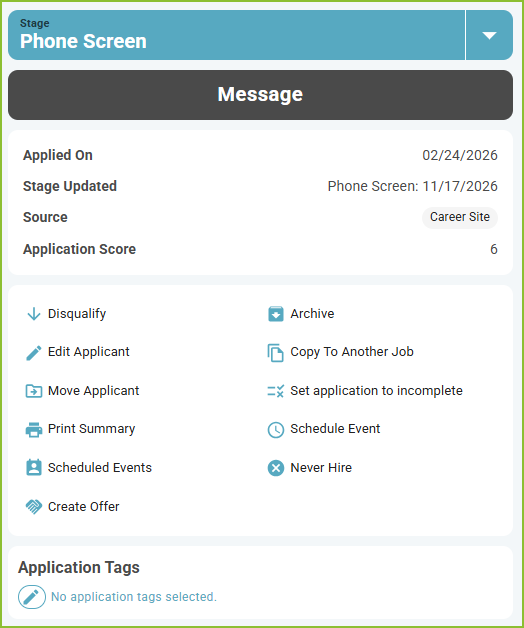
Stage
-
Change the Application Stage using the Stage drop down menu. The Advancement Reason pop up box will appear.
-
Select an Advancement Reason and click CONFIRM.
-
Messages
-
Use the Messages button to navigate to the Messages area to communicate with the applicant.
Disqualify
-
Click Disqualify to change the status of the application to disqualified.
-
The Disqualification Reasons pop up box will appear. Select a Disqualification Reason and click CONFIRM.
-
The user may also select the “Never hire for any job.” option to mark the applicant as Never Hire.
-
Archive
-
Use Archive to archive the application.
Edit Applicant
-
Use Edit Applicant to edit the applicant contact/profile information.
Copy to Another Job
-
Use Copy To Another Job to copy this application to another job.
Move Applicant
-
Use Move Applicant to move the application to another job.
Set Application to Incomplete
-
Use Set Application to Incomplete to reset the application to an incomplete status and communicate with the applicant.
Print Summary
-
Use Print Summary to print the application summary.
Schedule Event
-
Use Schedule Event (optional) to invite an applicant to an event.
Scheduled Events
-
Use Scheduled Events (optional) to view the history of scheduled events for the application.
Never Hire
-
Select Never Hire to mark the applicant as never to be hired for any job.
Invite to Next Step
-
Use Invite to Next Step to invite the applicant to complete the next step of the application.
Create Offer
-
Use Create Offer to initiate the offer process for the applicant.
Application Tags
-
Use Application Tags to help identify applicants with specific skills.
Still need help? Submit a support request and our team will get back to you.