
Key Features:
- Custom Reference Form Builder: Build tailored forms using multiple choice questions, Likert rating scales, and short/long answer questions.
- Streamlined Applicant Workflow: Applicants receive an authorization request and a unique, shareable link to distribute directly to their references.
- Two-Factor Reference Verification: References self-identify and verify their identity with a one-time passcode (via SMS or email). No account creation needed.
- Built-in Integrity Controls: Automatic rejection of applicant self-submissions (email match) and automatic flagging of shared IP addresses.
- Role-Based Permissions: Granular control over which users can view reference responses.
Step-by-Step Workflow:
Create the Reference Form(s)
- Begin in the SETTINGS Menu.

- Open Reference Forms.
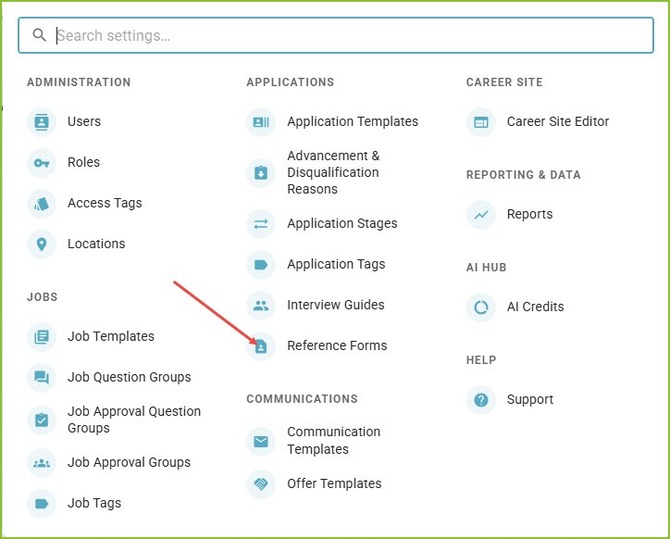
- Click New Reference Form.

- Name the form and click Create and Go To Setup.
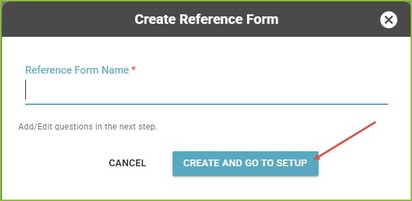
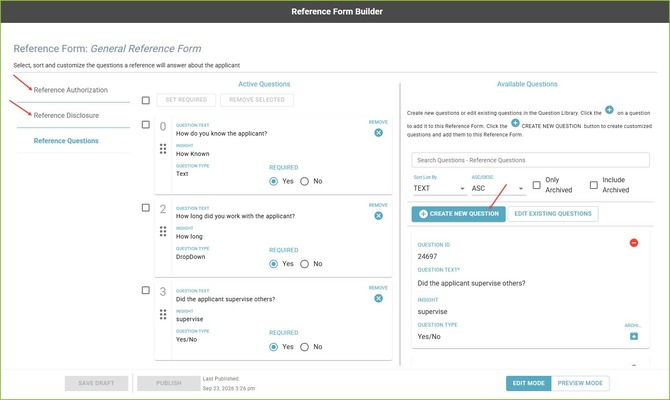
- Build your Reference Form
- Customize the Reference Authorization language - authorization to be completed by the applicant.
- Customize the Reference Disclosure language - disclosure to be presented to the reference.
- Create reference form questions by using the Create New Question button or selecting from previously created questions using the + and - . Standardized question types are available including scoring and auto-disqualification:
- Open-Ended Feedback
- Yes/No
- Multiple Choice selection
- Likert / Rating Scales
- and more
Initiate a Reference Check on an Application
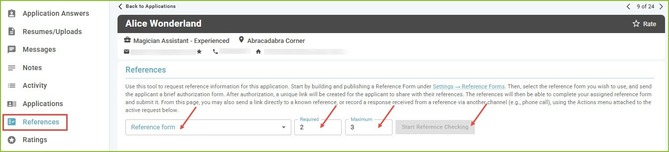
- Open the application record.
- Open the References tab.
- Select the appropriate Reference Form from the menu.
- Select the target completion count - Required and Maximum.
- Click Start Reference Checking.
- The ATS automatically sends an email/SMS invitation to the applicant to authorize reference checking and the opportunity to share their custom reference link.
- Contact References provided in the application.
- Click the Contact button associated with the reference to send the request to the reference.
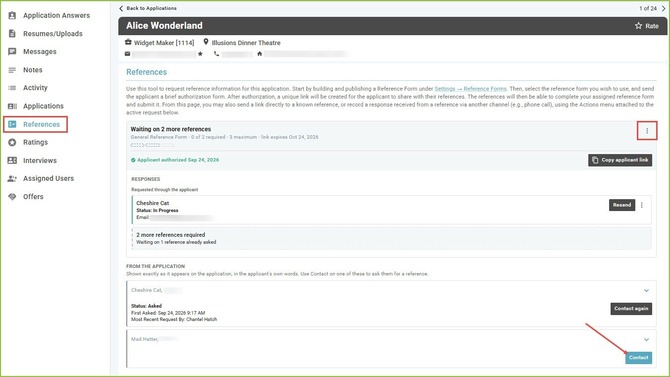
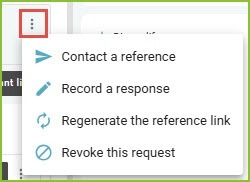
- Use the More Options menu to:
- Contact a reference
- Record a response - if you speak to a reference and need to record their response
- Regenerate the reference link - if the applicant lost the link
- Revoke the request - if the applicant has withdrawn from consideration or you no longer need to collect references
Track Reference Progress
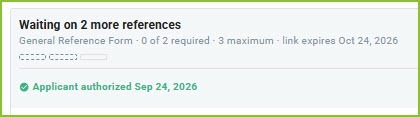
- On the References tab of the application record the Reference Check Status provides real time information on the status.
- Waiting on the applicant’s authorization: Applicant has not yet authorized the request.
- Waiting on xx more references: e.g., 1 of 3 Completed
- Reference requirement met: Target number of verified reference responses has been reached.
- Automated Summaries: Automated notifications keep users informed of new submissions and pending requirements for each applicant.
Reviewing Reference Feedback and Integrity Indicators
- Navigate to the References tab on the application record.
- Review the Reference requirement met area.
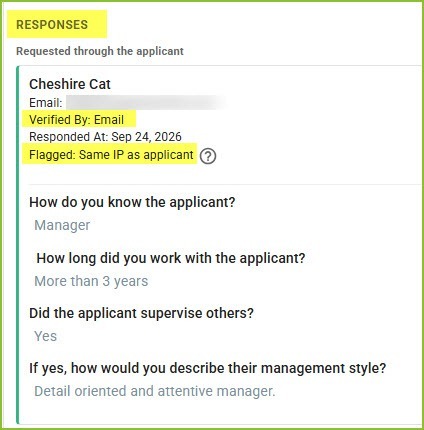
- Under Responses view the feedback provided by each reference.
- Reference Verification Badge: Confirms whether the reference is verified via text message or email using one time password.
- Integrity Flags:
- IP Match Alert: Flags when an applicant authorization and reference are submitted from the same IP address or when multiple references are submitted from the same IP address.
- Self-Submission Block: The system automatically blocks any reference attempt submitted using the applicant’s primary email address.
User Permissions and Visibility
- To safeguard sensitive feedback and maintain compliance, answer visibility is governed by ATS user roles.
- Candidates only receive progress notifications (e.g., "1 of 2 references completed"). All reference answers and scores remain strictly confidential to authorized internal users.