
Available with any of the following plans, except where noted:
Professional, Advantage
Watch or listen to an applicant's Instant Interview answers, add notes, and rate the interview. If your organization uses them, read transcripts and create an AI summary.
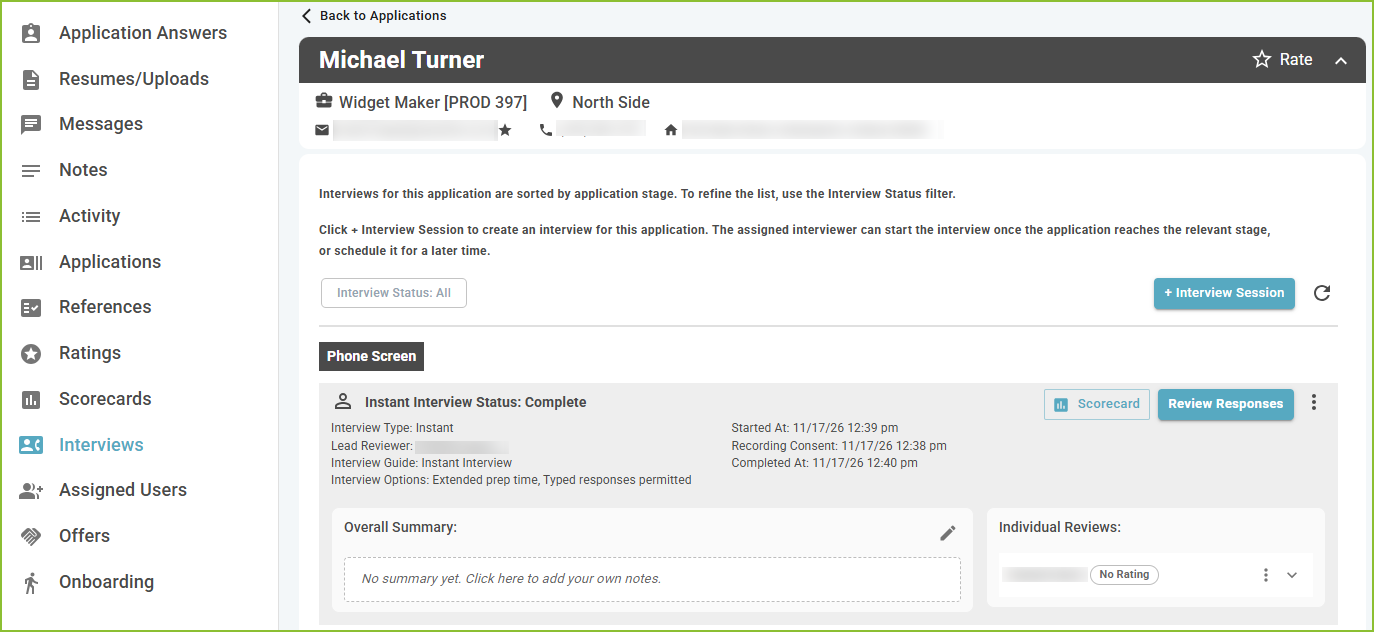
Open the answers
-
Open the application and go to the Interviews tab.
-
On the Instant Interview, click Review Responses.
Each answer shows as a Video response, Audio response or Text response, under its question. Add notes to any question as you go. Private notes are visible only to users who can view private application notes.
Note: a Tab/focus lost label on an answer means the applicant's browser tab or window lost focus while they were recording, and how many times. It is information for the reviewer, not a judgment.
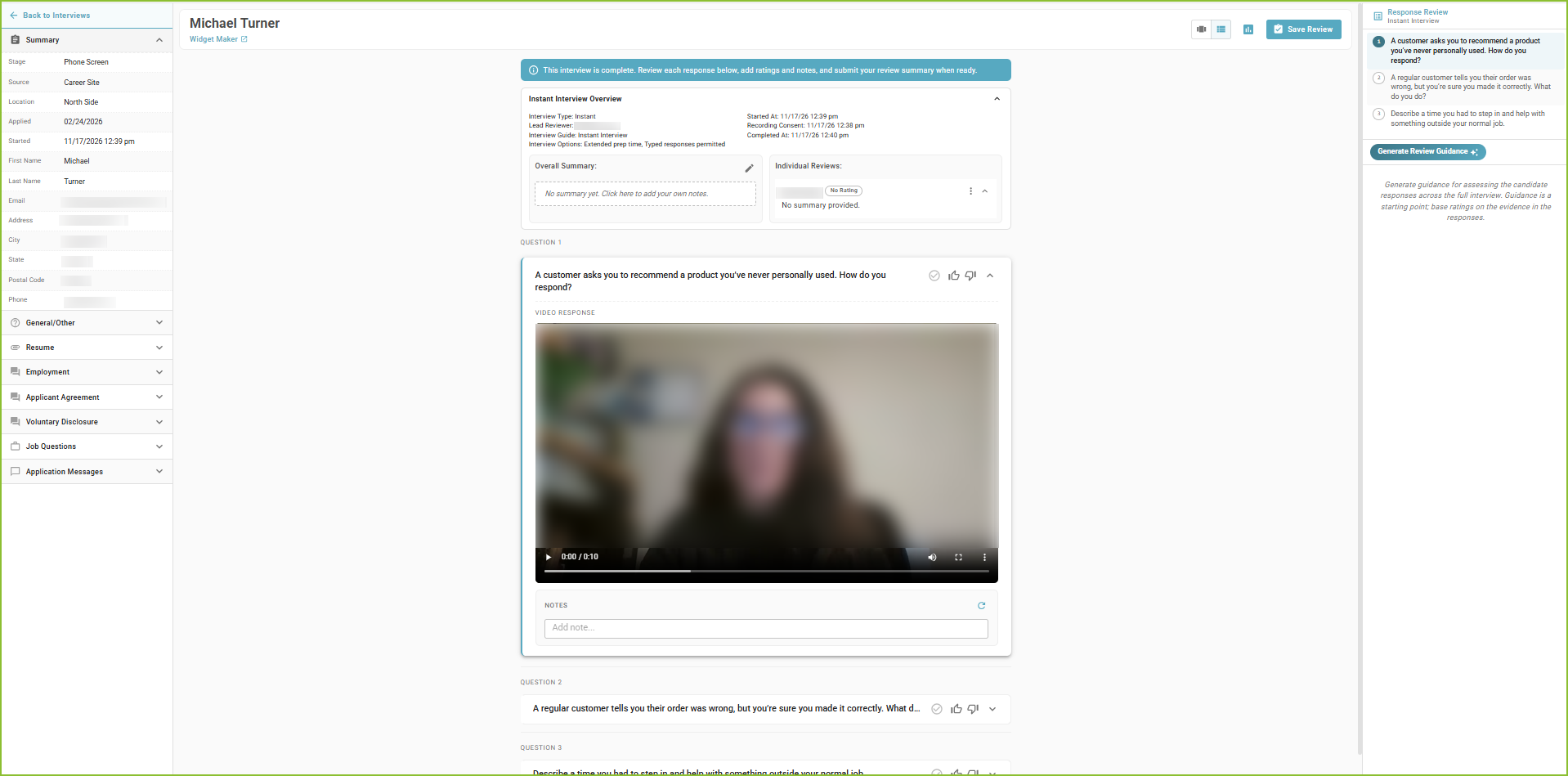
Rate the interview
-
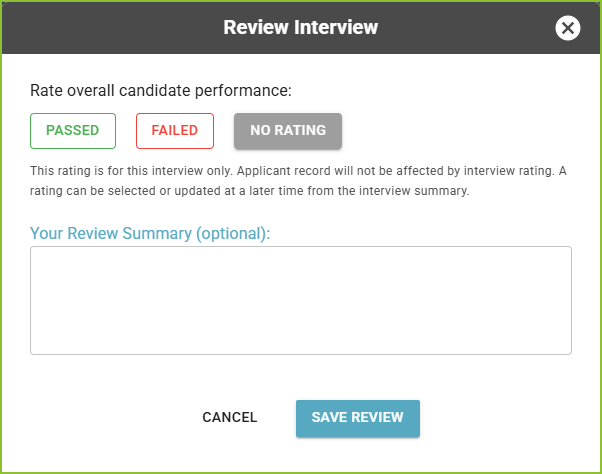
Open Review Interview.
-
Choose Passed, Failed or No Rating.
-
Optionally, add Your Review Summary.
-
Click Save Review.
Transcripts
If your organization has transcripts turned on, each recorded answer has a Transcript panel beside it. A transcript can take a few minutes to appear (Transcript processing). If one did not start, click Start transcription; if it failed, click Retry transcription. To turn transcripts on, submit a support request.
AI summary
-
On a completed interview, click Summarize with AI.
-
In Generate AI Summary, click Generate. The window shows how many AI credits the summary uses.
-
Read the summary, then click Apply to Interview to save it as the interview's Overall Summary.
AI-generated content may contain errors. Review the summary carefully before you apply it to the interview.
The AI summary is turned on separately and uses your organization's AI credits. To turn it on, submit a support request.
Still need help? Submit a support request and our team will get back to you.