
Available with any of the following plans, except where noted:
Professional, Advantage
Send an Instant Interview to an applicant from their application. You choose the guide, the stage it belongs to, who reviews it, and any accommodations the applicant needs.
Before you start
-
An Instant Interview Guide must exist. See Instant Interviews - Create.
-
Your role needs permission to manage interviews.
Create the interview session
-
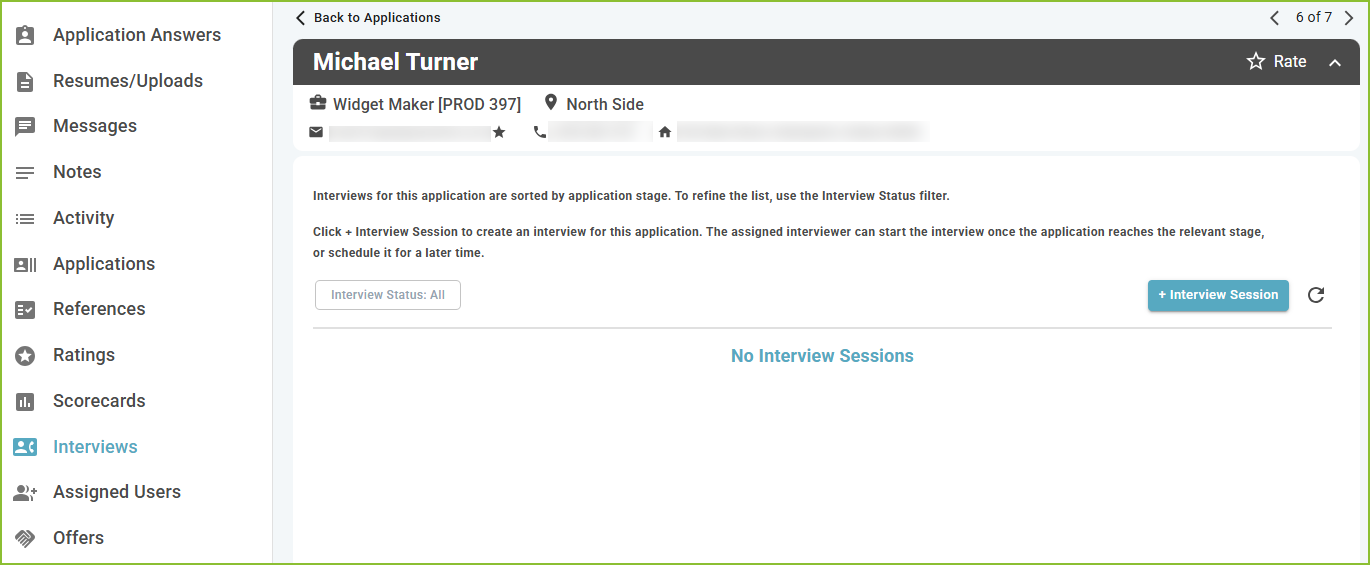
Open the application and go to the Interviews tab.
-
Create a new interview session. The Create Interview Session window opens.
-
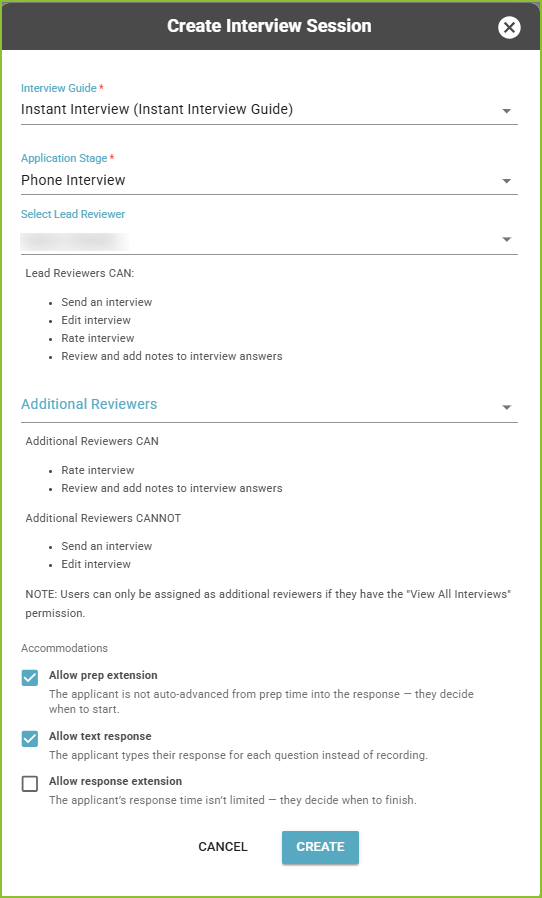
In Interview Guide, choose your Instant Interview Guide.
-
In Application Stage, choose the stage this interview belongs to.
-
Choose a Lead Reviewer. The lead reviewer can send, edit and rate the interview, and review and add notes to the answers.
-
Optionally, add Additional Reviewers. Only users with the View All Interviews permission can be added.
-
Set any accommodations (see below), then save the session.
Accommodations
If an applicant needs more time, or needs to type instead of record, turn on one or more of these in the Accommodations section:
-
Allow prep extension: the applicant is not moved from preparation into recording automatically. They decide when to start.
-
Allow response extension: the applicant's answer time is not limited. They decide when to finish.
-
Allow text response: the applicant types each answer instead of recording it.
Note: accommodations cannot be changed after the applicant starts the interview. Reviewers see them on the interview as Interview Options.
Send the interview
-
Click Send Interview.
-
Confirm that you want to send the invitation.
If the application has not reached the interview's stage yet, the interview shows when it will be available to send. Use Resend Interview to send the invitation again, or Copy Interview Link to share the link yourself.

What the applicant receives
-
An email invitation with a link to begin the interview. Applicants who prefer text messages, and have agreed to receive them, get a text message instead.
-
The link signs the applicant in for 3 days. After that, the applicant verifies who they are with a code sent by email or text before starting.
-
Reminders while the interview is still incomplete.
To share what the applicant will see, send them Applicant: Instant Interviews - Applicant Guide.
Track progress
The interview's status shows where it stands: Not Sent, Sent - Not Started, In Progress, Complete or Denied (the applicant chose not to complete it and gave a reason).
The lead reviewer is notified when the applicant starts, completes or declines the interview, and additional reviewers are notified when it is complete. These are the Instant Interview Started, Instant Interview Complete and Instant Interview Denied notifications.
Still need help? Submit a support request and our team will get back to you.