
Available with any of the following plans, except where noted:
Professional, Advantage
Score an applicant against the criteria your team chose for the job. Each reviewer completes their own scorecard, and can save a draft, submit it and change it later.
Before you start
-
Your role needs the Rate Applications permission.
-
The job must have a scorecard attached. See Scorecards - Create.
Open a scorecard
You can open a scorecard in any of these ways:
-
From My Work: open the Complete Scorecard task you get when an applicant reaches a stage you review.
-
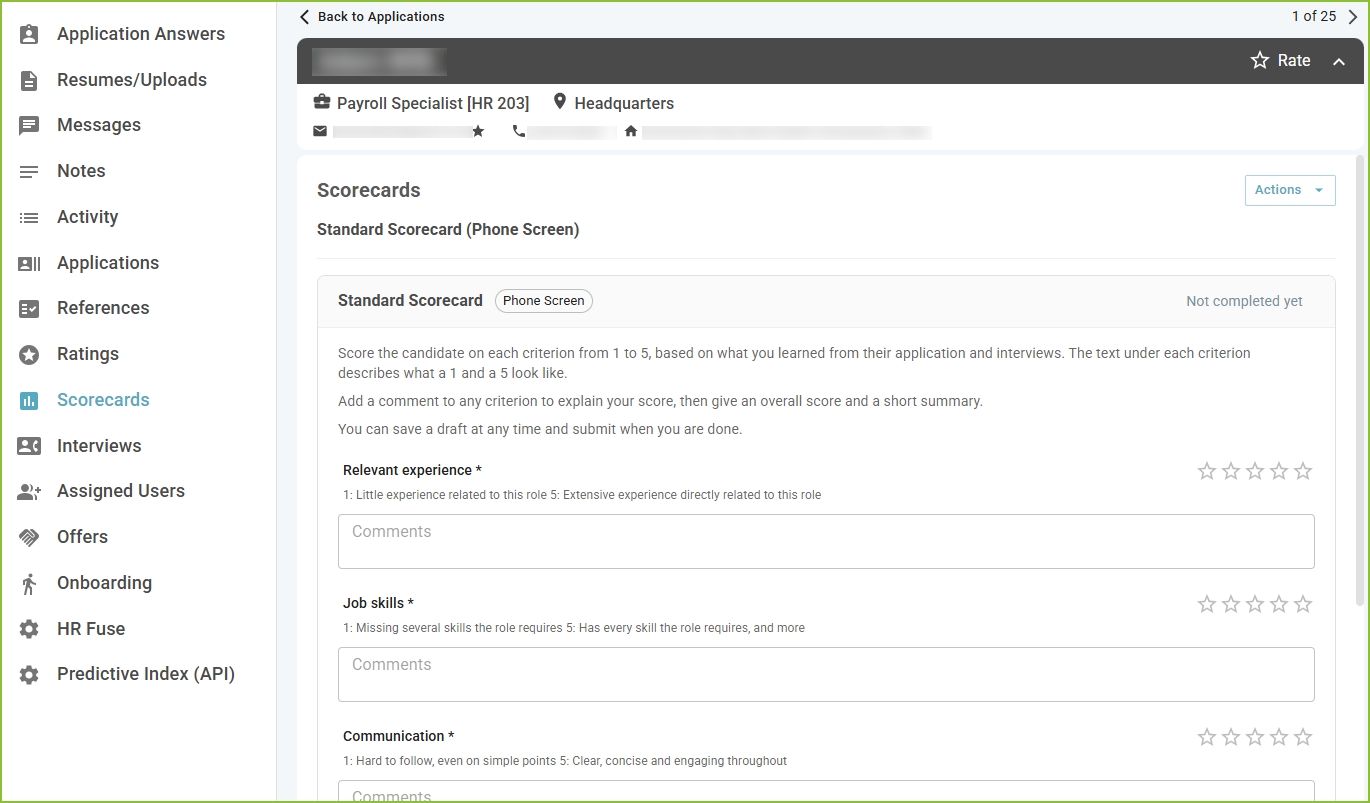
From the application: click Scorecards in the application's sidebar.
-
From an interview on the application's Interviews tab: click Scorecard on the interview's card. The Interview Scorecard window opens.
-
During an interview: click the Scorecard button on the interview screen.
Fill out the scorecard
-
Read the instructions at the top of the scorecard.
-
For each criterion, choose a score from 1 to 5. The label for that score appears beside it. Criteria marked with an asterisk (*) are required.
-
Optionally, add Comments to explain a score.
-
Give an Overall score, which is required, and optionally a Summary.
-
Click Save Draft to finish later, or Submit Scorecard when you are done.
If any required score is missing, the submit button reads Fix Missing Scores and the scorecard points to what still needs a score.
The scorecard's status shows where you are: Not completed yet, a draft, or the date you submitted it. A draft is only visible to you until you submit it.
Change a submitted scorecard
-
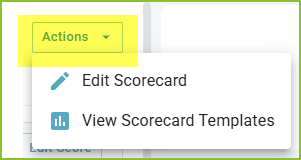
Click Actions.
-
Click Edit Score.
-
Change your scores, comments, overall score or summary.
-
Click Submit Scorecard.
While you edit, the team keeps seeing your submitted version until you submit the edit. Earlier versions are kept: open the scorecard's menu and choose Earlier Versions to see them.
If your organization uses AI Fit
By default, the AI Fit card on an application stays hidden from you until you submit your scorecard, so your scores reflect your own judgment. To change this setting for your organization, submit a support request.
See the team's scores
Other reviewers' scorecards appear once you submit yours. This keeps every reviewer's scores independent. After you submit, click View Team Scores to see the team's results. See Scorecards - View Results.
Still need help? Submit a support request and our team will get back to you.