
Available with any of the following plans, except where noted:
Professional, Advantage
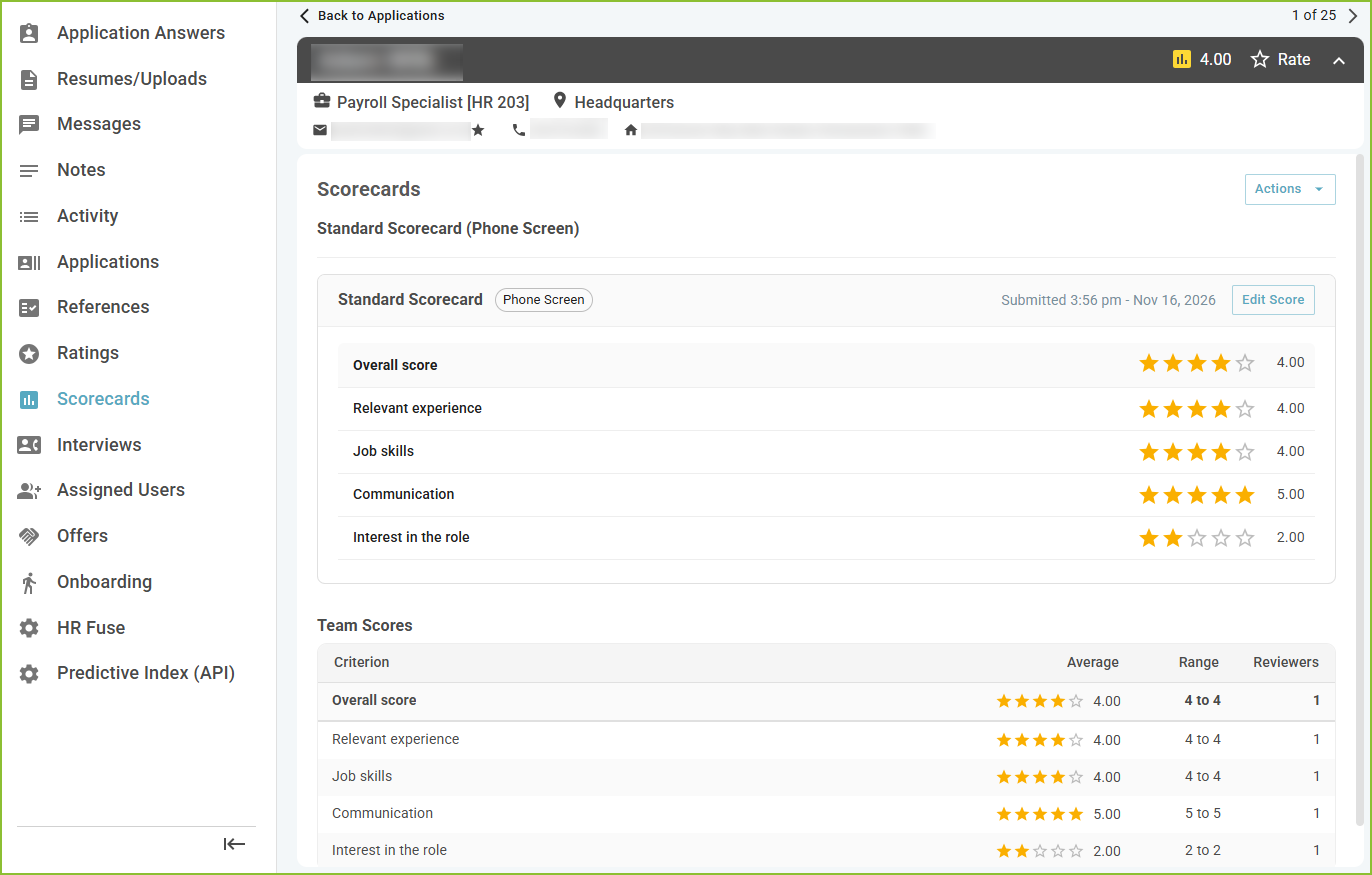
See how your hiring team scored an applicant: the overall score, an average and range for each criterion, and each reviewer's scores and comments. You can also report on, filter by and print scorecard results.
Who can see the results
-
Reviewers, once they have submitted their own scorecard for the application.
-
Users whose role has the View All Application Ratings permission, at any time.
-
The job's hiring managers, at any time.
The overall score on the application
Once you can see the results, the team's average overall score appears at the top of the application, beside the star rating. Hover over it to see how many scorecards it includes. Click it to open the application's Scorecards tab.
Team scores
On the application's Scorecards tab, the Team Scores table shows a row for the overall score and a row for each criterion, with these columns:
-
Criterion: what was scored.
-
Average: the team's average score.
-
Range: the lowest and highest score given.
-
Reviewers: how many reviewers scored it.
A criterion no one has scored yet shows two dashes (--). Below the table, each reviewer's scorecard shows their overall score, their score and comment for each criterion, their summary, and the date they submitted it.
If your organization uses AI Fit
For criteria assessed by Human and AI, the AI Fit column shows whether AI Fit found evidence for that criterion on the resume: Found, Not found, Not scored yet or N/A. If AI Fit rates the applicant very differently from the team's overall average, a message points it out so you can take a second look.
Report on and filter by scorecards
-
In the APPLICATIONS view, use the Average Scorecard Rating filter to find applicants by their team's average overall score.
-
In application saved searches, add the Average Scorecard Rating column, or a column for each scorecard criterion showing its average score.
See Application Searches and Filters (Saved Searches and Insights) for how to add filters and columns.
Print scorecard results
-
Open the application and click Print Summary.
-
Select the Scorecards section. It includes the team's overall score and each completed scorecard you are allowed to see.
-
Click Print.
Still need help? Submit a support request and our team will get back to you.