
Available with any of the following plans, except where noted:
Professional, Advantage
Build the scorecards your hiring team uses to rate applicants, then attach them to your jobs. Each scorecard is a set of criteria that reviewers score from 1 to 5.
Before you start
-
Your organization must have scorecards turned on. They are turned off until ExactHire turns them on for your organization. To start using them, submit a support request.
-
Your role needs the Manage Scorecards permission.
Open the scorecard list
-
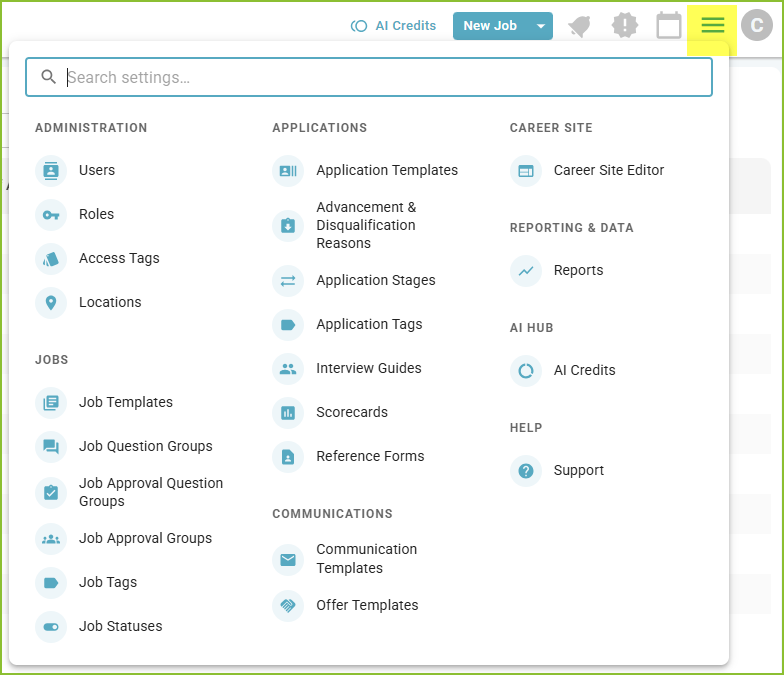
Go to Settings.
-
Under Applications, click Scorecards.
The list shows each scorecard's Name, Last Updated date and Last Published date. Use Search scorecards to find one by name, and the Archived Status filter to show archived scorecards.
Every organization starts with a scorecard named Standard Scorecard, with four criteria: Relevant experience, Job skills, Communication and Interest in the role. You can use it as it is, change it, or copy it as a starting point.
Create a scorecard
-
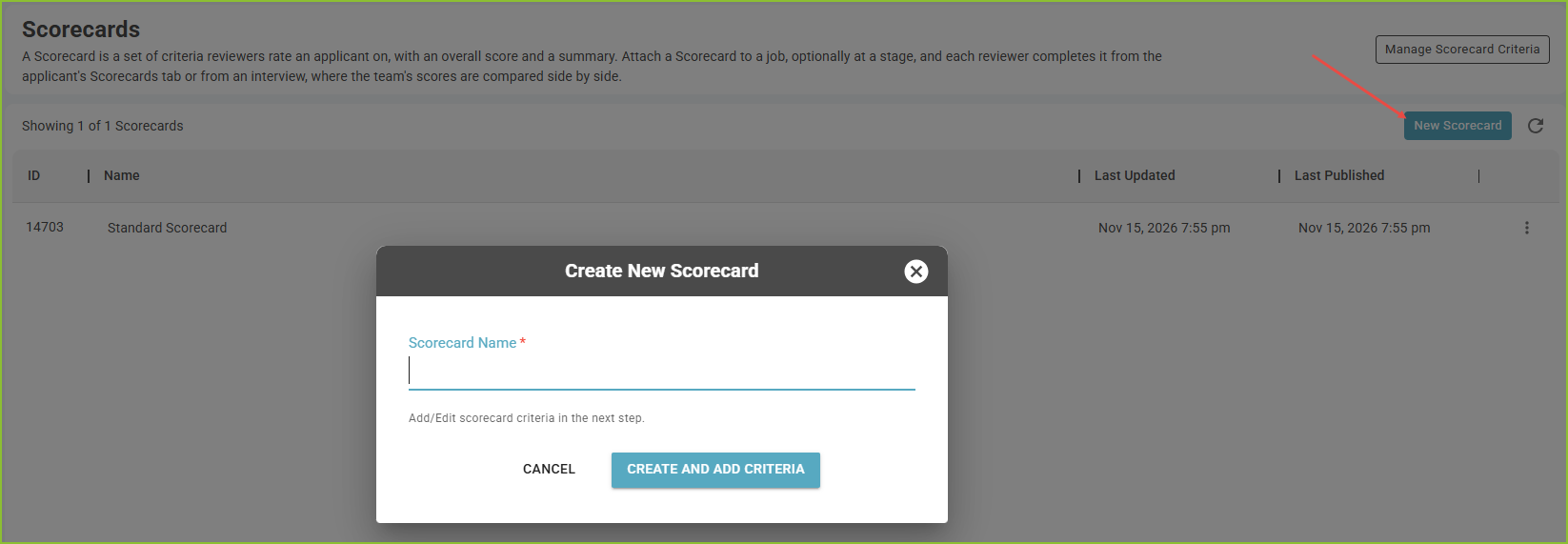
Click New Scorecard.
-
Enter a Scorecard Name of up to 100 characters.
-
Click Create and Add Criteria. The Scorecard Builder opens.
Add criteria
Criteria are the items reviewers score. The builder lists the criteria on this scorecard under Active Questions, and the criteria you can add under Available Questions.
-
Add a criterion from Available Questions column to Active Questions column.
-
To write a new criterion, click Create New Question.
-
Drag criteria up or down in Active Questions to set the order reviewers see.
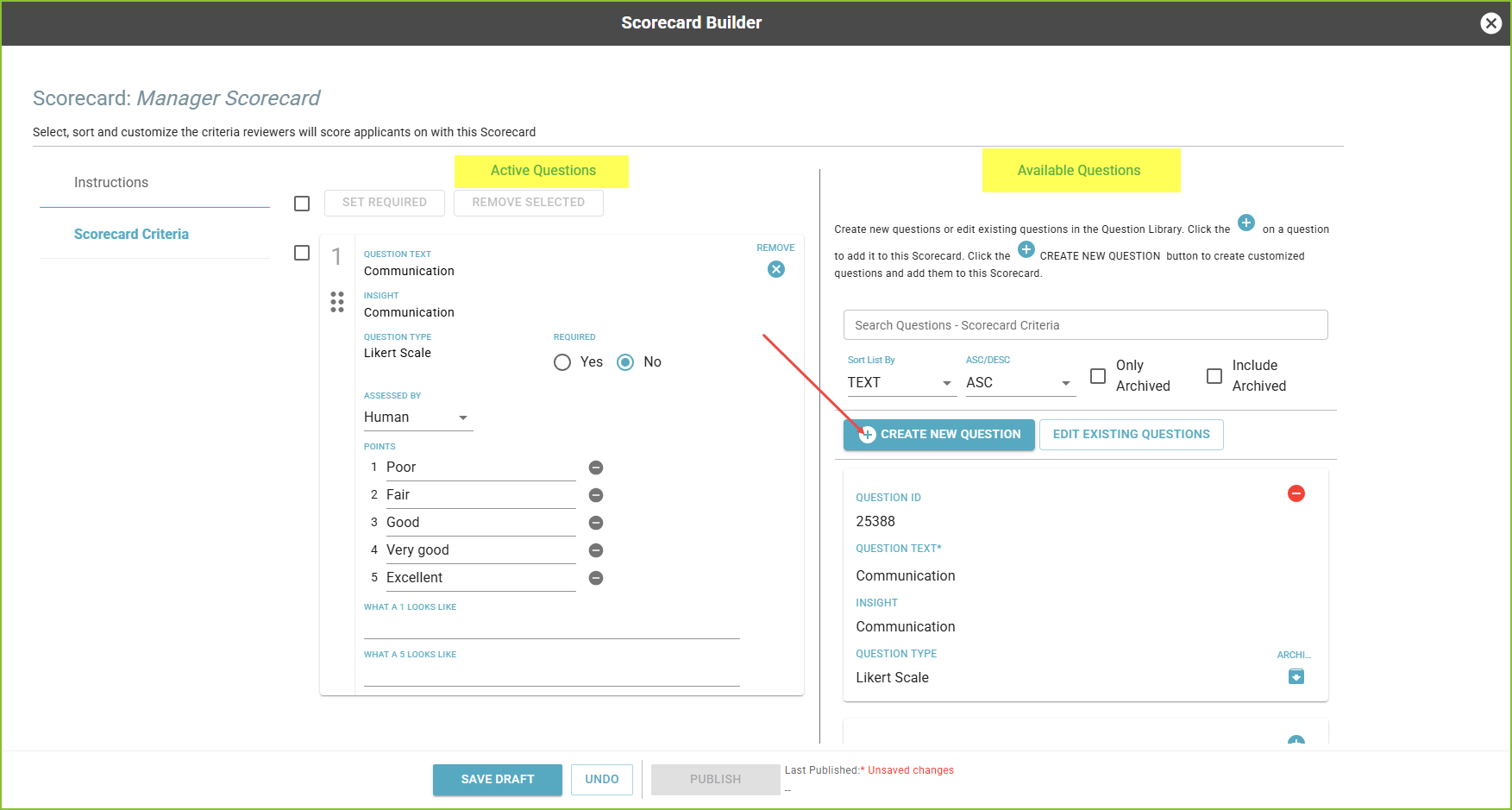
Each criterion has these settings:
-
Points: a label for each score from 1 to 5. The defaults are Poor, Fair, Good, Very good and Excellent. You can change them, for example 1 = No experience, or leave a point without a label.
-
What a 1 looks like and What a 5 looks like: short descriptions that tell reviewers what the lowest and highest scores mean.
-
Assessed by: Human, or Human and AI if your organization uses AI Fit. With Human and AI, the team's results also show what AI Fit found on the resume for that criterion.
To create or edit criteria in your organization's criteria library without opening a scorecard, click Manage Scorecard Criteria on the scorecard list.
Edit the instructions
Every scorecard opens with instructions that reviewers read before they score. A default text is included. To change it, edit the Instructions section in the builder.
Save and publish
-
Save Draft keeps your changes without changing what reviewers see.
-
Publish makes your changes live. Publishing affects every job that uses this scorecard, so the builder asks you to confirm.
-
Undo reverts your unsaved changes.
Copy, archive or delete a scorecard
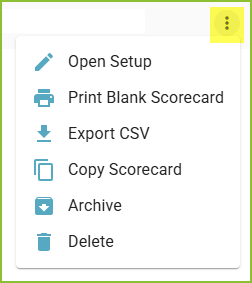
On the scorecard list, open a scorecard's options menu:
-
Open Setup opens the builder.
-
Copy Scorecard creates a copy named after the original with “ - Copy” added. Edit the copy to make a variation.
-
Print Blank Scorecard and Export CSV give you the scorecard's criteria to share or review offline.
-
Archive hides a scorecard you no longer use. Use Unarchive to bring it back.
-
Delete removes a scorecard that no one has used yet. Once reviewers have started or completed a scorecard, it can no longer be deleted. Archive it instead.
Attach a scorecard to a job
-
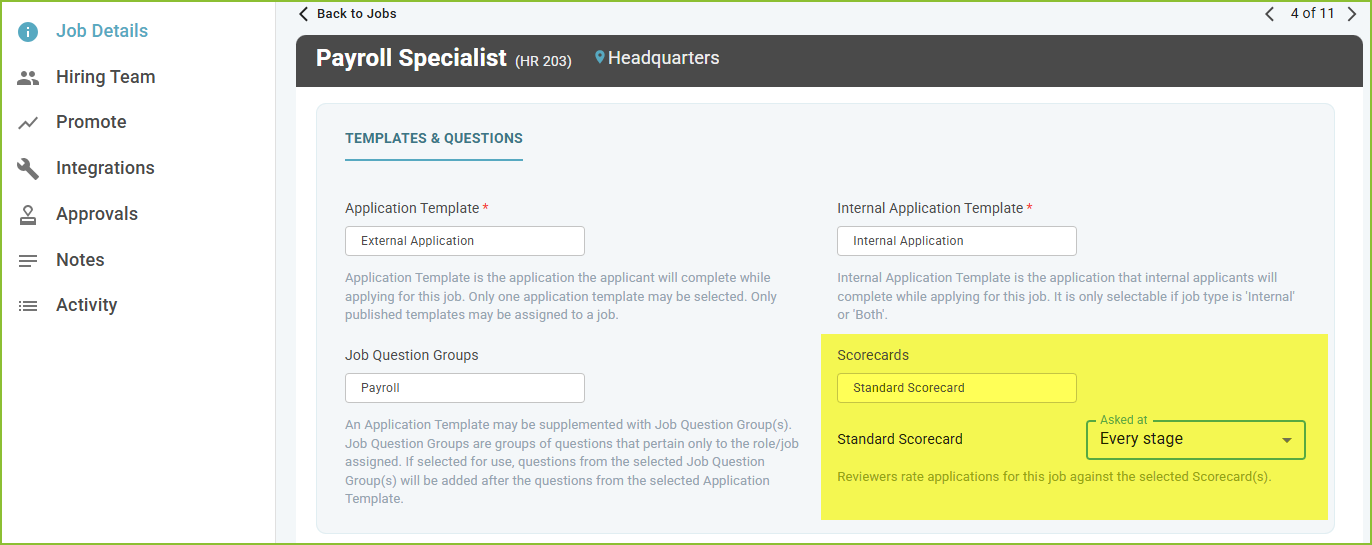
Open the job and edit it.
-
In the Scorecards field, select one or more scorecards.
-
For each scorecard, use Asked at to choose when reviewers complete it. Leave it empty to ask for the scorecard at Every stage, or select one or more stages, such as your interview stage.
-
Save the job.
When an applicant reaches a stage that asks for a scorecard, everyone on that stage's hiring team gets a Complete Scorecard task in My Work until they complete it.
Note: job templates can include scorecards too, and a scorecard added from a job template is asked at every stage. To limit it to certain stages, edit the job after you create it and set Asked at.
Still need help? Submit a support request and our team will get back to you.